
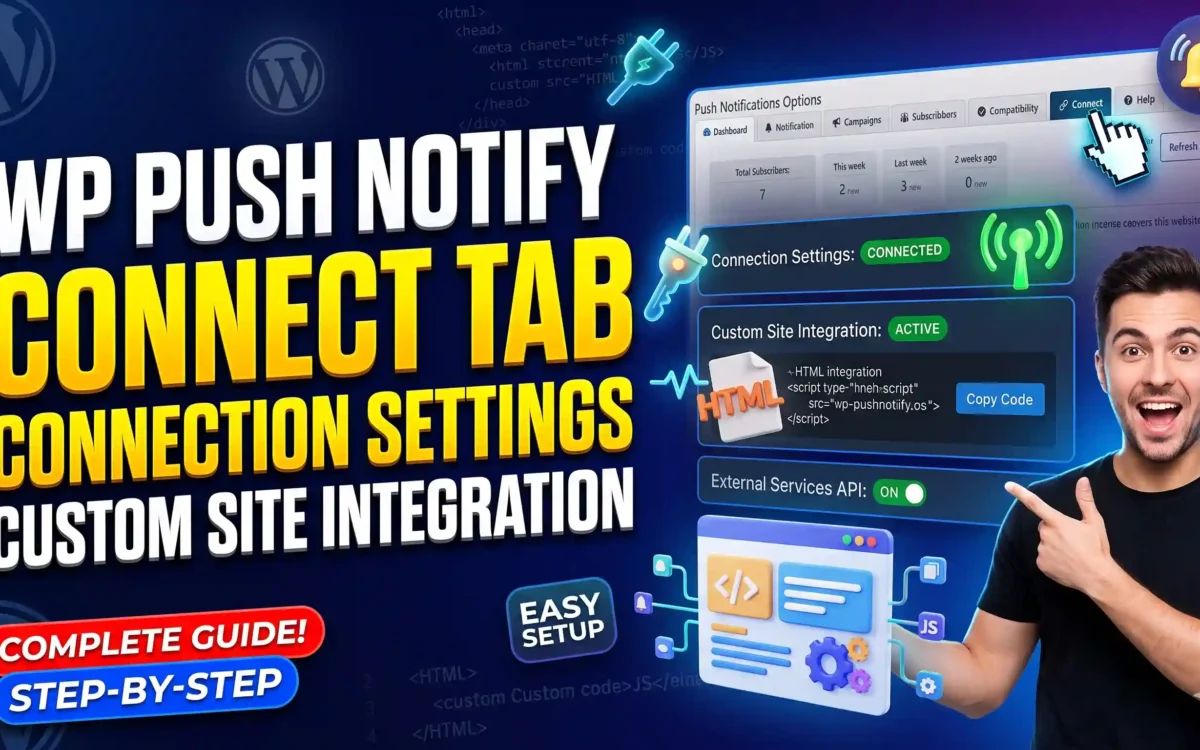
The WP Push Notify Connect tab tells you whether your site is ready to send push notifications, and holds the settings that decide how your site presents itself to browsers. It also gives developers the pieces they need to add push to a site that is not built with WordPress. Open WP Push Notify in your WordPress menu and click Connect.
For most sites, the only thing you need to do here is check that the green “Connected and ready” box is showing. The rest is optional.
1. The connection status box
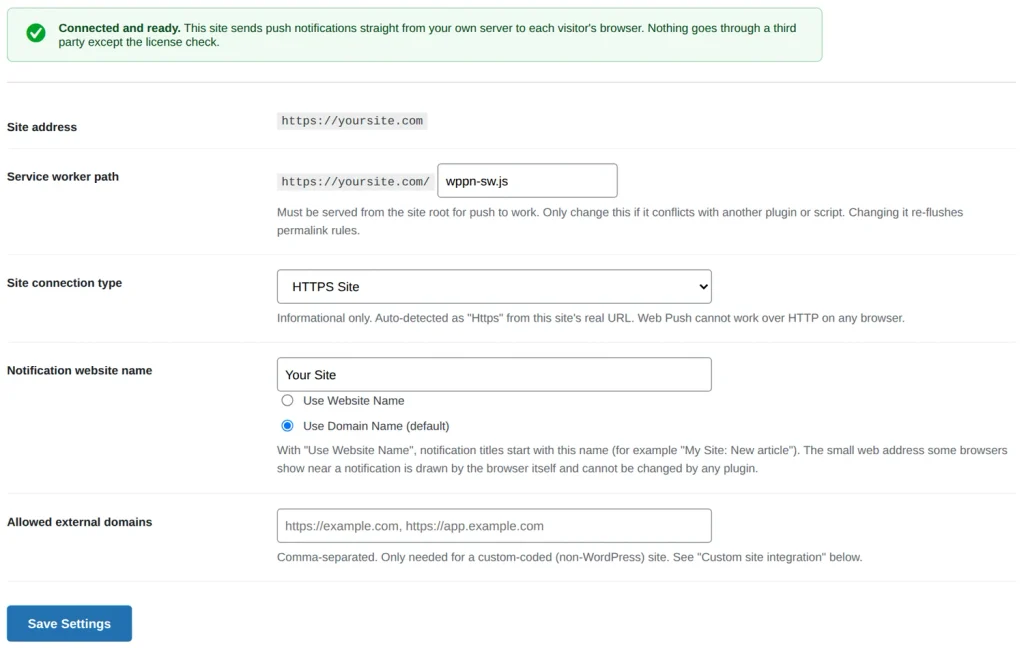
At the top you see either a green or a red box.
- Connected and ready (green): your site sends push notifications straight from your own server to each visitor’s browser. Nothing goes through a third party except the license check.
- Not ready yet (red): both HTTPS and push keys are required. Fix the red notice shown at the top of the plugin page, then come back. The Compatibility tab can help you find the cause.
2. The connection settings
Site address
Your site’s address, shown for reference. It cannot be edited here. It matters because subscribers are tied to the address they subscribed on.
Service worker path
A service worker is a small file that lets browsers receive notifications even when your site is closed. By default it is named wppn-sw.js and lives at the root of your site. Browsers require it to be served from the root for push to work. Only change this if it conflicts with another plugin or script. Changing it refreshes your permalink rules.
Site connection type
Choose HTTPS Site or HTTP Site. This is informational only, and it is detected automatically from your real address. Web push cannot work over HTTP in any browser, so a live site should be on HTTPS.
Notification website name
Type the name you want to show, then choose how it is used:
- Use Domain Name (default): notifications are not prefixed.
- Use Website Name: notification titles start with your name, for example “My Site: New article”.
The small web address some browsers show near a notification is drawn by the browser itself, and no plugin can change it.
Allowed external domains
Leave this empty unless you are linking a custom-coded, non-WordPress site. If you are, enter that site’s address here, with several addresses separated by commas, such as https://example.com, https://app.example.com.
Click Save Settings after any change.
3. Custom site integration
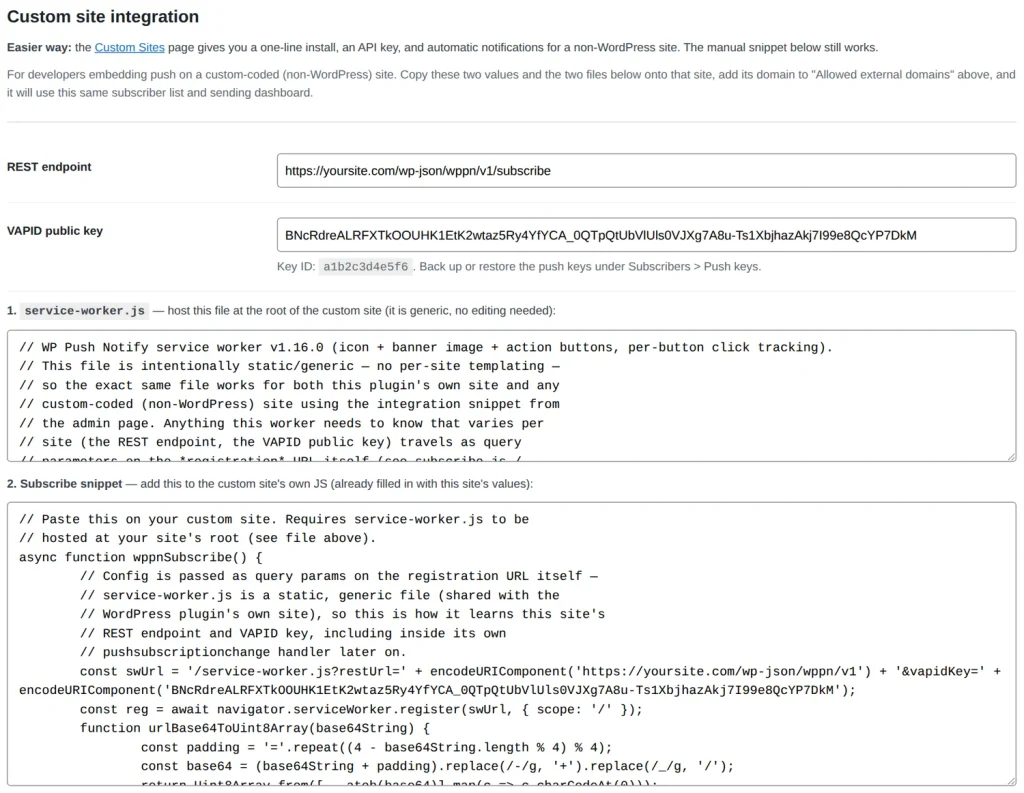
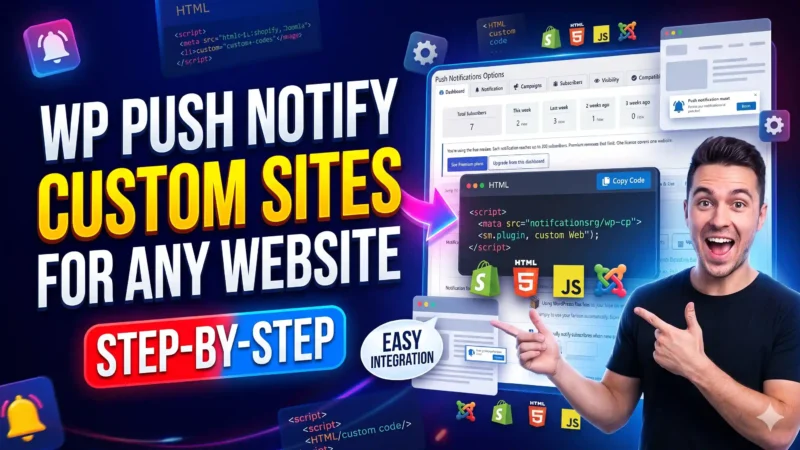
This section is for developers who want to add push to a site that does not run WordPress, such as a hand-coded website. That site then uses the same subscriber list and sending dashboard as your WordPress site.
There is also an easier route. The Custom Sites page, linked at the top of this section, gives you a one-line install, an API key, and automatic notifications for a non-WordPress site. The manual snippet described here still works.
What you copy
- REST endpoint: the address where your custom site sends new subscriptions.
- VAPID public key: your site’s public push key, with its Key ID underneath. You can back up or restore the keys under Subscribers, then Push keys.
- 1. service-worker.js: a generic file, with no editing needed. Host it at the root of the custom site.
- 2. Subscribe snippet: JavaScript that is already filled in with your site’s values. Add it to the custom site’s own scripts and call it when a visitor agrees to subscribe.
Click any of these boxes to select the whole text, then copy it.
Quick steps
- Add the custom site’s address to Allowed external domains above and save.
- Copy
service-worker.jsto the custom site’s root. - Paste the subscribe snippet into the custom site’s JavaScript, and trigger it from a button.
- Test by subscribing, then send a notification from the Notification tab.
Frequently asked questions
Why does it say “Not ready yet”?
Because HTTPS or the push keys are missing. Make sure your site loads with a padlock and check the Compatibility tab.
Do I need to touch these settings?
Usually not. The defaults work for most WordPress sites. The notification website name is the one setting many people like to adjust.
Can I show my website name in notifications?
Yes. Pick Use Website Name and your title will start with it. The small web address shown by the browser is controlled by the browser.
Can I use WP Push Notify for a site that is not WordPress?
Yes, through Custom site integration, or the easier Custom Sites page. Add the other site to Allowed external domains first.
Where do I find the Help tab?
It is the last tab, and it covers troubleshooting and common fixes.
What’s next
Want to connect WP Push Notify to your custom website? Follow these quick and easy steps
1 comment