
Not every website runs on WordPress. Maybe your main site is hand-coded, built with Laravel, Node.js, Shopify-style custom code, or a plain set of HTML pages. You can still send push notifications to its visitors with WP Push Notify. The Custom Sites page is how you do it, and this guide explains it step by step in plain language.
You do not need to be a developer to get the basics working. If you can copy a line of text, upload one file, and click a few buttons, you can finish Parts 1 to 5. Parts 6 and 7 are optional and are for people (or their developer) who want notifications to send automatically.
1. What Custom Sites is, in simple words
WP Push Notify is a WordPress plugin. Normally it lives on the same WordPress site that your visitors read. But what if your visitors read a different site, one that is not WordPress? The plugin cannot be installed there.
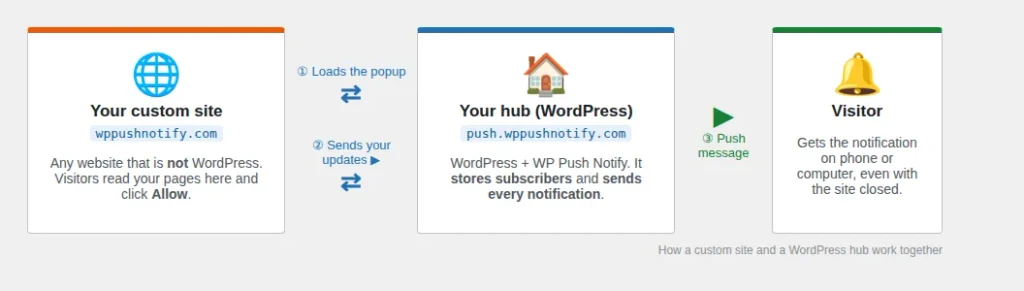
Custom Sites solves this by splitting the work between two places:
- Your custom site is the website your visitors see. It only needs one small file and one line of code.
- The hub is a small WordPress site that has WP Push Notify installed. It keeps the list of subscribers and does all the sending.
Think of the hub as a post office. Your custom site is the shop window where people sign up for deliveries. The post office keeps the address book and delivers every parcel.
In this guide we use a real example. Our main website is wppushnotify.com (the custom site), and we created a separate WordPress site on a subdomain, push.wppushnotify.com (the hub), with WP Push Notify installed on it. Replace these two addresses with your own as you follow along.
2. How it works (the big picture)
Here is what happens, in order:
- A visitor opens your custom site. The one line of code you add loads a small script from the hub. That script shows the same popup, bell or button that you designed in the plugin.
- The visitor clicks Allow. Their browser creates a private subscription, and the script sends it to the hub. The hub saves it in its subscriber list.
- You send a notification. You can do this by hand from the hub’s dashboard, or your custom site can ask the hub to send one automatically (for example, when you publish a new article).
- The hub delivers it. The notification reaches the visitor’s phone or computer, even if your website is closed.
Important points that make this easy to understand:
- All subscribers from all your connected sites go into one shared list on the hub.
- Your custom site never stores subscriber details. The hub does.
- The hub also shows your reports and campaigns, just like a normal WP Push Notify install.
3. Before you start
Make sure you have these ready:
- A WordPress site with WP Push Notify installed and working (the hub). We used a fresh WordPress install on
push.wppushnotify.com. A subdomain is a very tidy choice because it keeps the hub separate from your main site. You can also use any existing WordPress site you own. - HTTPS on both sites. Both the hub and the custom site must open with the padlock (
https://). Browsers do not allow push notifications on plainhttp://sites. - Access to your custom site’s files through your hosting panel, FTP, or your developer. You will upload one file and edit your page template once.
- The hub’s Connect tab shows the green “Connected and ready” box. If it is red, fix that first. See the Connect tab guide.
Tip: On the hub, open WP Push Notify in the WordPress menu, then click Custom Sites. Everything in this guide happens on that page, so keep it open in one browser tab.
4. Step 1: Tell the hub which site is allowed
For safety, the hub only accepts sign-ups from websites you have approved. This is the first box on the Custom Sites page, called Allowed domains.
What to do:
- On the hub, go to WP Push Notify, then Custom Sites.
- In Allowed domains, type the address of your custom site. Example:
https://wppushnotify.com - If your site opens with and without
www, add both, separated by a comma:https://wppushnotify.com, https://www.wppushnotify.com - Click Save domains and settings.
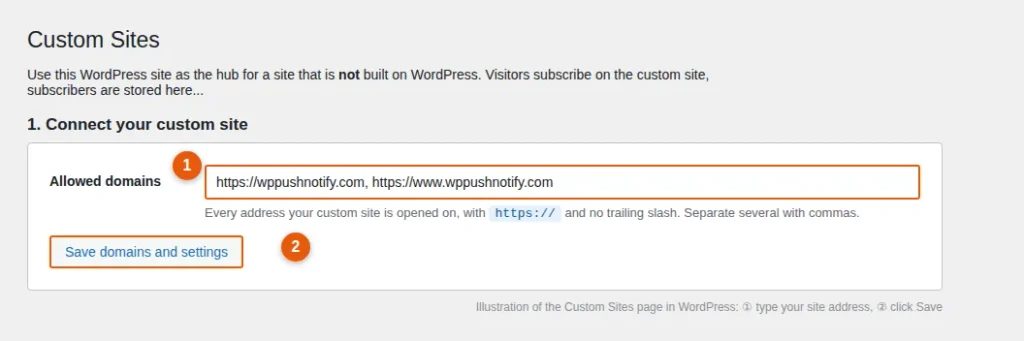
Write it exactly like this: start withhttps://and do not add a slash at the end.https://example.comis correct.example.comandhttps://example.com/are not. Also remember thatwwwand non-wwwcount as two different sites.
Why this matters: without this step, the visitor can click Allow but the subscription is refused by the hub. This is the most common reason a first test fails.
5. Step 2: Upload the service worker file
A service worker is a tiny file that lives in the visitor’s browser. It wakes up when a notification arrives and shows it, even when your website is closed. Without it, push cannot work.
What to do:
- On the Custom Sites page, under Step A, click Download service-worker.js. A small file is saved to your computer.
- Open your custom site’s files (hosting file manager or FTP).
- Upload
service-worker.jsto the root folder, the top folder that contains your home page. It is often calledpublic_html,www, orhtdocs. - Check it: open
https://yourdomain.com/service-worker.jsin your browser. You should see a page of code text. If you see “404 Not found”, the file is in the wrong place.
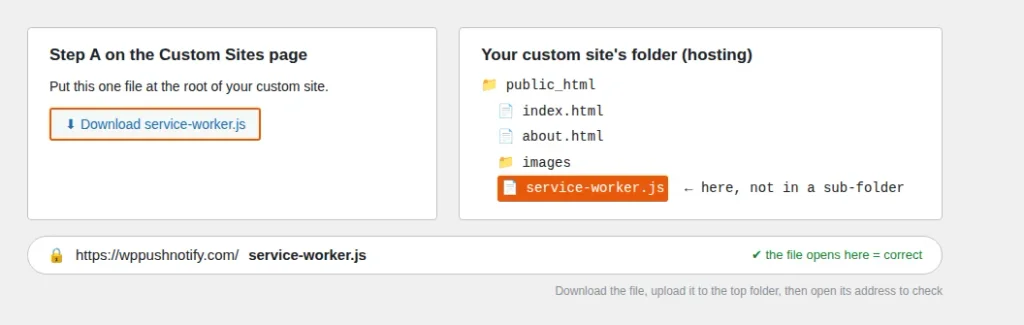
Why it cannot live on the hub: a browser only lets a service worker control the site it is served from. So the file has to be on your custom site’s own domain, not on the hub’s.
The file is generic. You do not need to edit it. The same file works for every custom site.
6. Step 3: Paste the one-line install
This is the line that shows the popup and connects your site to the hub.
- On the Custom Sites page, under Step B, find the grey box with a line that starts with
<script src=.... Copy it. It looks like this (yours will have your own hub address):
<script src="https://push.wppushnotify.com/wp-json/wppn/v1/embed.js" async></script>- Open the template or page of your custom site that is shared by every page (often a footer or layout file).
- Paste the line just before the closing
</body>tag. - Save and upload the changed file.
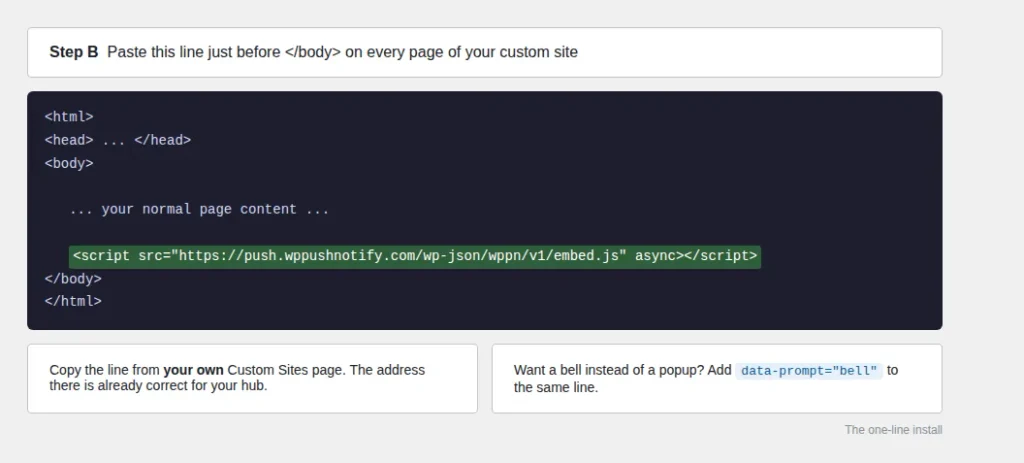
That is the whole install for the popup. The popup follows the design, text, colours and timing you chose in the hub’s other tabs (Notification and Visibility), so you do not need to design it again.
Using a website builder? Look for a setting called “Custom code”, “Footer code” or “Before </body>”. Paste the line there. If your builder does not allow custom code at all, ask your developer for help or choose a builder that does.
7. Step 4: Test that it works
- Open your custom site in a normal browser window (Chrome, Edge or Firefox on a computer or Android phone works best for testing).
- Refresh the page. The popup, bell or button should appear. If it does not, wait a few seconds or check the Visibility settings on the hub, as they decide when and where it shows.
- Click Allow in the popup, then Allow again in the browser’s own question.
- Go back to the hub. In the plugin, open the Subscribers tab. You should see your new subscriber.
- Send a test from the Notification tab. A notification should pop up on your screen.
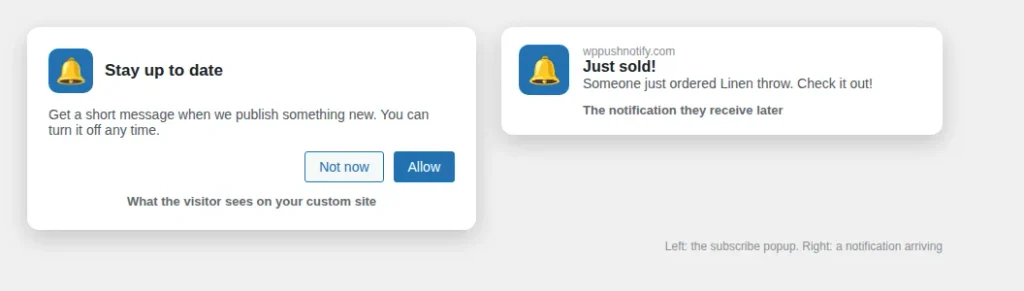
If you see the notification, you are done with the basic setup. The rest of this guide covers sending automatically.
iPhone and iPad: Apple only allows web push for sites that have been added to the Home Screen as an app. For a custom site that means it needs its own web app manifest. Test on a computer or Android phone first.
8. Sending notifications
You have three ways to send, from easiest to most advanced:
| Way | Who it is for | How |
|---|---|---|
| By hand on the hub | Everyone | Use the Notification tab or the Campaigns tab on the hub. Subscribers from your custom site get it like any other subscriber. |
| Plain send from code | Developers | Your site’s code calls the hub’s /send address with a title, a message and a link. |
| Events from code | Developers | Your site’s code tells the hub “a new article was published” or “a price dropped”. The hub writes and sends the message for you using your templates. |
For many people, sending by hand is enough, and you can stop here. The next sections are for sending automatically.
9. The API key (for automatic sending)
An API key is like a password that proves a message really comes from you. Without it, anyone on the internet could try to send notifications to your subscribers, so the hub refuses any automatic request that does not carry the key.
What to do:
- On the Custom Sites page, scroll to 2. API key.
- Click Create API key.
- The key appears once, in a yellow box. Copy it immediately and store it somewhere safe, such as a password manager.
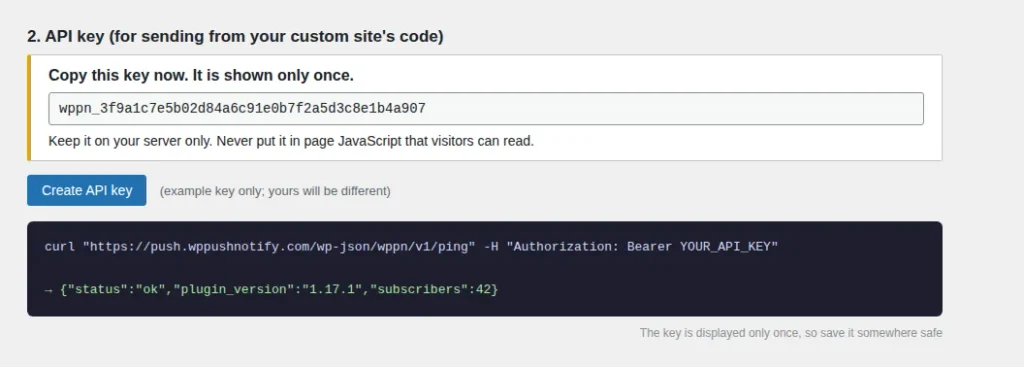
Two golden rules:
1. The key is shown only once. If you lose it, make a new one. Making a new key stops the old one working immediately.
2. Keep the key on your server only. Never paste it into JavaScript that visitors can read, because anyone could copy it.
Quick check that the key works
Your developer can run the test shown on the page. It asks the hub “are you there?” and the hub answers with its status and subscriber count:
curl "https://push.wppushnotify.com/wp-json/wppn/v1/ping" -H "Authorization: Bearer YOUR_API_KEY"A good answer looks like {"status":"ok", ... "subscribers":42}. If your host strips the Authorization header, send the same key as X-WPPN-Key: YOUR_API_KEY instead.
Built-in protection: after 20 wrong keys from the same network, the hub blocks that network for about ten minutes.
10. Automatic notifications and their settings
With the key, your custom site can report things that happen and the hub turns them into notifications. This works the same way as the WooCommerce integration, with the same style of editable messages. You do not need WooCommerce.
| Event | When your site reports it | Example notification |
|---|---|---|
new_post | You publish an article or page | The article’s title and a short excerpt |
new_order | An order is paid | “Just sold! Someone just ordered Linen throw.” |
back_in_stock | A product returns to stock | “Back in stock! Linen throw is available again.” |
price_drop | A price goes down | “Price drop! Linen throw is now $42 (was $58).” |
cart_update / cart_clear | A cart changes / is paid | A private reminder to that one shopper (see Part 11) |
On the Custom Sites page, the section 3. Automatic notifications lets you control each one without touching code:
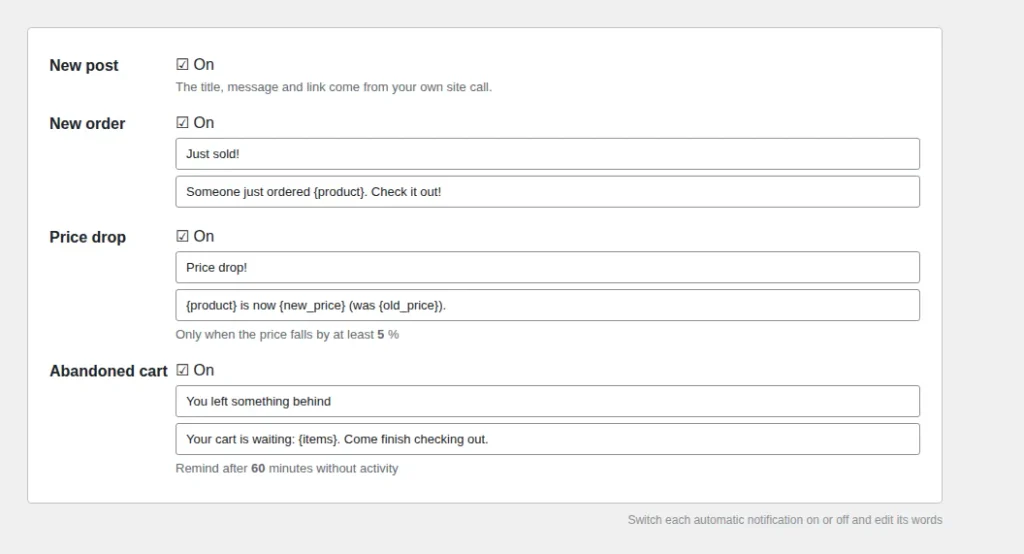
- On checkbox: turn each type on or off. When off, the hub ignores that event.
- Title and message: edit the words. You can use placeholders that the hub fills in:
{product},{total},{old_price},{new_price}and{items}. - Price drop minimum: only notify when the price falls by at least this percentage (the default is 5%). Tiny changes are skipped automatically, so you do not annoy people.
- Cart delay: how many minutes of silence before a reminder is sent (the default is 60, the minimum is 5).
For New post, the title, message and link come from your site’s own report, so there is nothing to edit here.
Click Save settings after any change.
What your developer sends
Here is a small example your developer can adapt. This tells the hub that a new article was published (Node.js):
await fetch("https://push.wppushnotify.com/wp-json/wppn/v1/event", {
  method: "POST",
  headers: { "Authorization": "Bearer YOUR_API_KEY", "Content-Type": "application/json" },
  body: JSON.stringify({ type: "new_post", data: {
    title: "Ten slow-cooker soups",
    excerpt: "Warm, easy and cheap.",
    url: "https://wppushnotify.com/soups",
    post_id: 123
  } })
});
The Custom Sites page also has ready-to-copy examples for curl, Node.js and PHP, already filled with your hub’s address.
Safe to retry: if you include a
post_idororder_id, the hub remembers it and will never notify twice for the same one, even if your server sends the request again by mistake. The hub also never includes buyer details such as name, email or address in a broadcast.
11. Abandoned-cart reminders
This is the one automatic feature that goes to one person only, not everyone. When a shopper adds products to the cart, leaves, and does not buy, they get a friendly reminder after your chosen delay.
It needs three small pieces from your developer:
- In the shopper’s browser, after the cart changes, call
WPPNEmbed.linkCart(cartId). This quietly connects “this browser” to “this cart”. ThecartIdis a random string of 16 to 64 letters or numbers that your site keeps for that shopper. - On your server, send
cart_updatewith the product names whenever the cart changes. - On your server, send
cart_clearwhen the order is paid, so the shopper is not reminded for something they already bought.
The hub checks for abandoned carts every 15 minutes. It sends one reminder per cart and then forgets it. Carts older than a week are cleaned up. The shopper must be subscribed in that same browser, otherwise there is nowhere to send the reminder.
12. Optional tweaks
These small additions go on the script line from Step 3.
| Add this | What it does |
|---|---|
data-prompt="bell" | Chooses the style for this site only. Other choices: auto, button, both. |
data-logo="https://yourdomain.com/logo.png" | Shows your custom site’s own logo in the popup. Without it, the popup uses the hub’s Site Icon (Settings, General, Site Icon in WordPress). |
data-sw="/path/to/service-worker.js" | Use this if you put the service worker file somewhere else or gave it a different name. |
Want your own button? Add the attribute data-wppn-subscribe to any button or link. Or your developer can call WPPNEmbed.subscribe() from a click.
Already have a service worker? A site can only have one at the root. Add importScripts('/service-worker.js'); at the top of your existing worker file, and point data-sw at your own file.
Note that the notification itself always uses the hub’s Site Icon, even when you set a custom logo for the popup.
13. Is it safe?
- Only approved sites can sign people up. That is what the Allowed domains box does.
- Only you can send automatically. That needs the secret key, and the key is stored in a scrambled form on the hub. Even the hub cannot show it again.
- Wrong-key attempts are limited. Guessing the key gets a network blocked quickly.
- Cart links cannot be hijacked. Once a cart is linked to a browser, knowing the cart id is not enough to point its reminder at someone else.
- Visitors stay in control. Nothing is sent unless they click Allow, and they can switch notifications off in their browser at any time.
14. Troubleshooting
| Problem | What to check |
|---|---|
| The popup never appears | Is the script line on the page, just before the closing body tag? Did you refresh? Are the hub’s Visibility settings hiding it? Is your custom site on HTTPS? |
| Visitor clicks Allow but is not in the Subscribers list | The address in Allowed domains must match exactly: https://, correct spelling, no trailing slash, and www versus non-www. |
| Browser says the service worker failed | Open yourdomain.com/service-worker.js. If it is a 404, move the file to the root folder. |
| Automatic send says “401 Invalid API key” | Make a new key (the old one cannot be shown again). If your host strips the Authorization header, send X-WPPN-Key instead. |
| It says “429” or “Too many failed attempts” | Wrong keys were sent too many times. Wait about ten minutes, then use the correct key. |
| Cart reminders never arrive | The shopper must be subscribed in that browser, linkCart must be called, your server must send cart_update, and WP-Cron must be running on the hub. |
| Hub shows a red “Not ready yet” box | Fix HTTPS or push keys on the hub first. Check the Compatibility tab. |
Still stuck? Turn on Debug mode under the hub’s Advanced settings, try again, and check the server’s error log for lines starting with [WP Push Notify]. Every failed send is recorded there with the reason.
Frequently asked questions
Do I need a second WordPress site?
Yes, the hub is a WordPress site with WP Push Notify. It can be a tiny, empty site on a subdomain like push.yourdomain.com. It does not need to look good because visitors never read it.
Can several custom sites share one hub?
Yes. Add every site’s address to Allowed domains (separated by commas), upload the service worker and add the script line on each. All subscribers go into one shared list.
Is there a limit?
Subscribers from every connected site share one list. On the Free plan, each notification reaches up to 200 subscribers, counted across the whole list. The Premium plan has no cap per send.
Do I need to code?
Not for the basics. Steps 1 to 4 need no real coding, only copying a line and uploading a file. Automatic sending from your own site (Parts 9 to 11) needs a developer or someone comfortable with code.
Can I use the old manual snippet instead?
Yes. The Connect tab still has the manual snippet for developers, and it keeps working. Custom Sites is simply the easier route, and it adds the API key and the automatic events.
Will it work on iPhone?
Apple only allows web push for websites added to the Home Screen, so your custom site needs a web app manifest for that. Computers and Android phones work without it.
Where do I see my subscribers and reports?
On the hub. Everything, including the Subscribers, Campaigns and Dashboard tabs, works exactly as it does on a normal WordPress install.
What’s next
Now that your custom site is connected, send a test from the Notification tab, then try one automatic event from your site’s code. If you get stuck, the Help tab inside the plugin has quick answers.
2 comments