
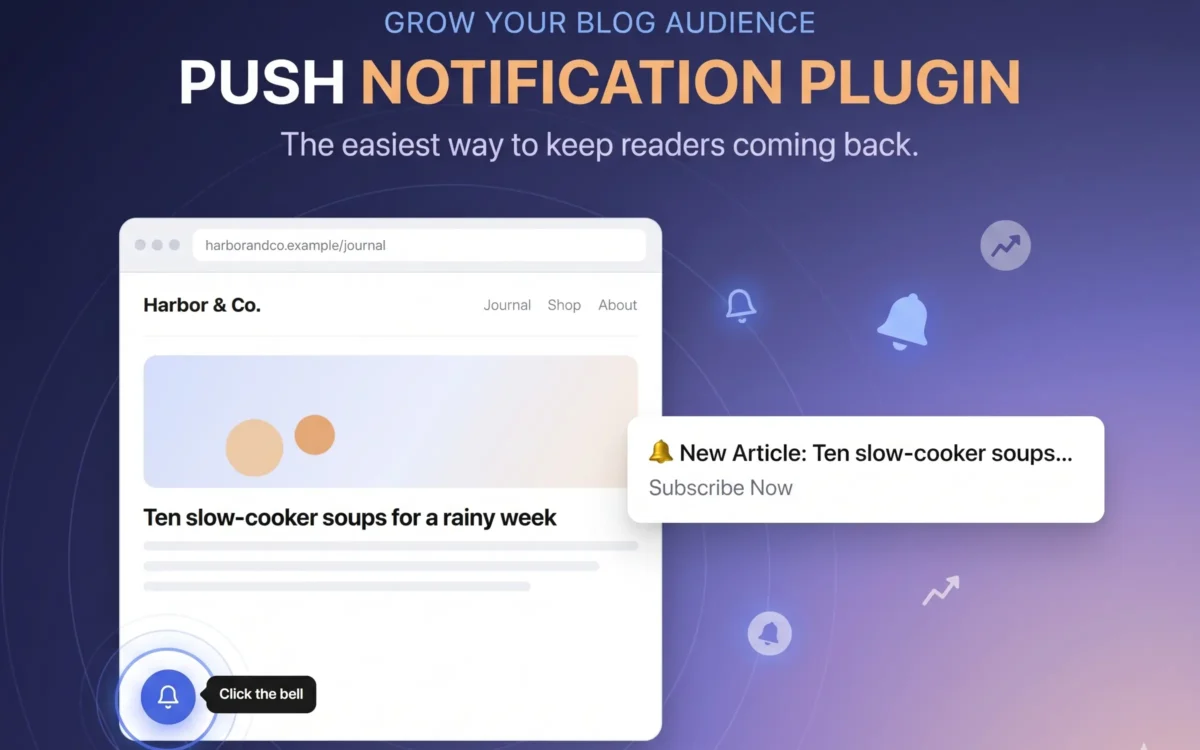
Push notifications let you reach people after they have left your site: a new post, a sale, a product back in stock. This guide shows how to add them to WordPress with a self-hosted push notification plugin for WordPress. Your subscriber list stays in your own database, and no outside service sits in the middle.
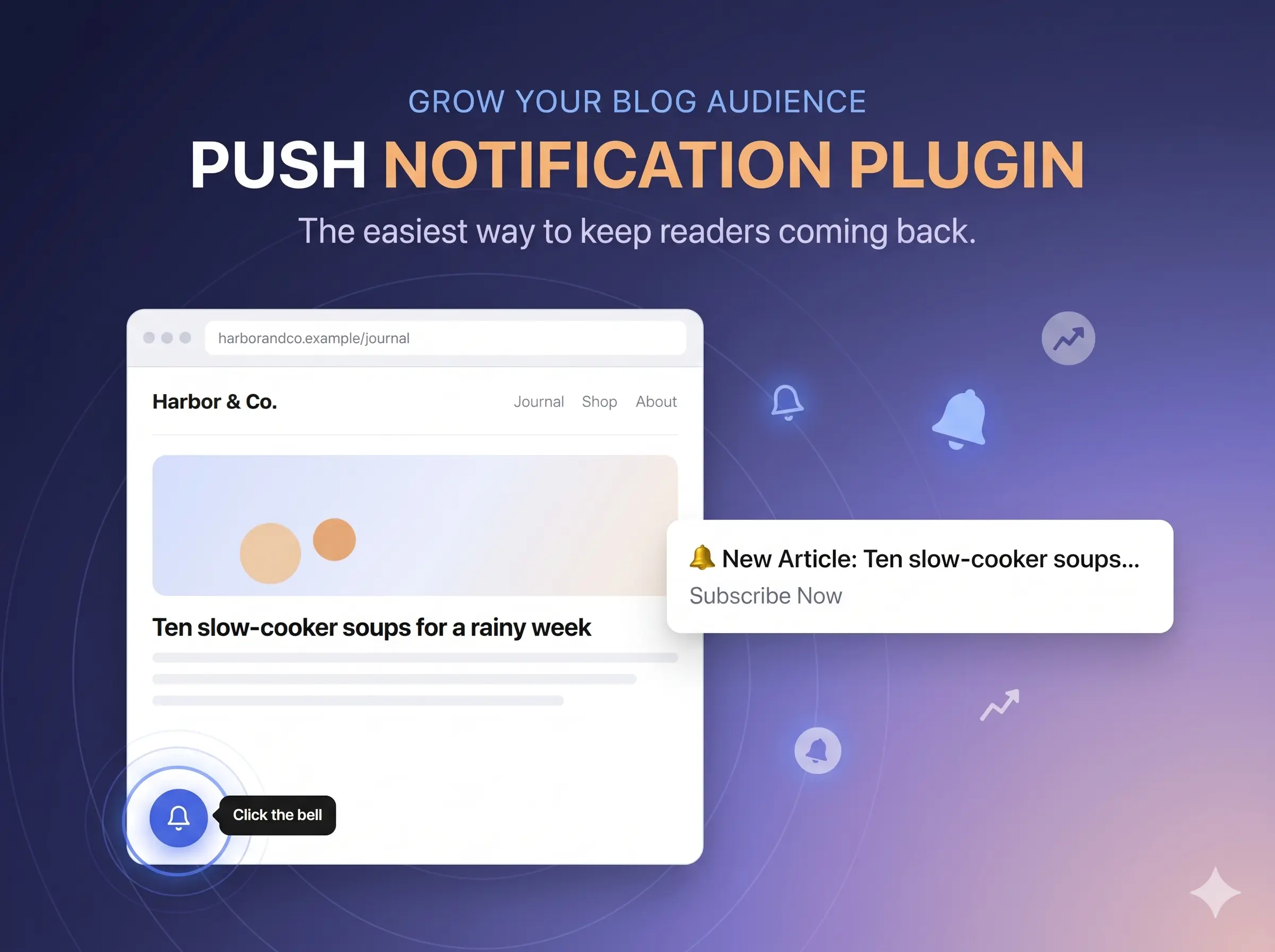
What you need
- A WordPress site that runs on HTTPS. Browsers only allow push on a secure connection.
- WordPress 6.4 or newer and PHP 7.4 or newer.
- Nothing else. There is no Composer step, no outside library and no account to create. The plugin makes its own encryption keys when you activate it.
Install and activate the plugin
- Download the free plugin from the download page.
- In WordPress, go to Plugins, then Add New, then Upload Plugin, and choose the zip file.
- Click Install Now, then Activate.
Every setting is explained in the documentation.
Choose how visitors are asked
Open the plugin’s Dashboard tab and find Subscription popup. Under How it appears, set the Display style:
- Floating bell: a small bell stays in a corner of every page.
- Automatic: the popup opens on its own.
- Automatic popup + Floating bell: the popup opens, and the bell stays for anyone who chooses Later.
- Button only: nothing appears by itself. Place the
shortcode where you want the button.
Then pick one of the popup designs. There are fourteen, each with a live preview, and you can edit every word. For advice on wording, read how to ask for push permission without annoying visitors.
Subscribe from your own browser first
Open your site in a normal browser window and click Allow when the popup or bell asks. Then open the Subscribers tab. You should see yourself in the list, with your browser, operating system, device and country. No IP address is stored.
If nothing appears, or the list stays empty, the cause is nearly always a caching plugin. The caching plugin fix and the troubleshooting guide cover it.
Send your first notification
Open the Notification tab, write a title, a message and a link, and check the live preview. Then send. You can also turn on automatic notifications so that every new post goes out the moment you publish it. Password-protected posts are skipped, so nothing private is sent.
What the Free plan includes
The Free plan is the whole plugin. Each notification reaches up to 200 subscribers, and every other feature works the same. When your list outgrows that, the Premium plan costs $9.99 a month or $90 a year and removes the limit. One Premium license covers one website. There are no refunds, so test on the Free plan first.
What to do next
Learn when to send and how to avoid the mistakes that make people unsubscribe. Running a shop? Read the guide to abandoned cart notifications.