

The WP Push Notify Compatibility tab is a health check for your push notifications. Before you worry about popups or messages, it tells you whether your server can actually send them, which browsers your visitors can use, and how fast large sends should go. It also holds a few safety settings, and, if you run an online shop, the automatic WooCommerce notifications.
Open WP Push Notify in your WordPress menu and click Compatibility. Green ticks mean good, yellow warnings mean “works, but worth a look”, and red marks mean something must be fixed.
1. The health checks
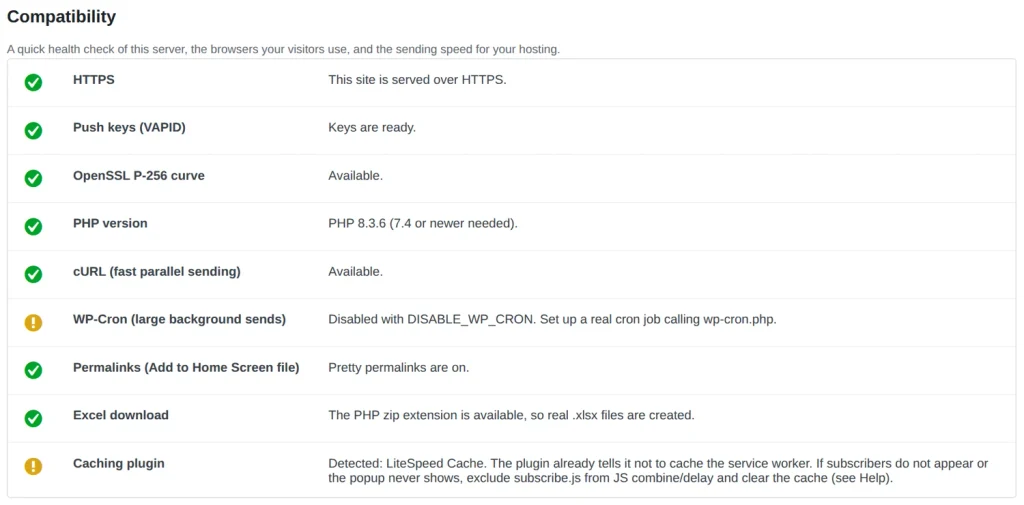
Each row shows an icon, the name of the check, and a short result in plain words.
- HTTPS: web push only works on secure (HTTPS) sites. If this shows red, install an SSL certificate first. Your host can usually do this for free.
- Push keys (VAPID): the pair of keys that links your site to your subscribers’ browsers. It should say “Keys are ready.” If it cannot create them, the cause is a server OpenSSL problem, and your host can help.
- OpenSSL P-256 curve: a technical feature needed to sign notifications. If it cannot be confirmed you get a yellow warning, and the advice is to ask your host if sending fails.
- PHP version: PHP 7.4 or newer is needed. The row shows your version.
- cURL (fast parallel sending): lets the plugin send many notifications at once. If it is missing, sending still works, only slower.
- WP-Cron (large background sends): WordPress’s scheduler, used for large sends and scheduled campaigns. If your site has it switched off with
DISABLE_WP_CRON, you get a yellow warning and the advice to set up a real cron job that callswp-cron.php. - Permalinks (Add to Home Screen file): with the “Plain” permalink setting, only the optional
wppn-manifest.jsonfile is affected. Everything else works. - Excel download: needs the PHP zip extension for a real .xlsx file. Without it, the download falls back to a CSV file that Excel opens directly.
- Caching plugin: it detects LiteSpeed Cache, WP Rocket, W3 Total Cache, WP Super Cache, WP Fastest Cache and SiteGround Optimizer. The plugin already tells them not to cache its service worker. If subscribers do not appear or the popup never shows, exclude
subscribe.jsfrom JavaScript combine or delay, and clear the cache.
2. Browsers and devices

- Chrome, Firefox, Edge and other Chromium browsers on desktop and Android work directly, with no install step.
- Safari on Mac works directly, because Apple has supported the open Web Push standard since Safari 16.1.
- iPhone and iPad (iOS or iPadOS 16.4 and newer): this is an Apple rule, not a plugin limit. Push only works after a visitor taps Share, then Add to Home Screen, and opens your site from there. The plugin also notes that it is unavailable to people physically in the EU as of iOS 17.4.
- Every browser requires HTTPS for web push.
In practice, expect most subscribers to come from Chrome, Edge and Android phones.
3. Server performance and delivery speed
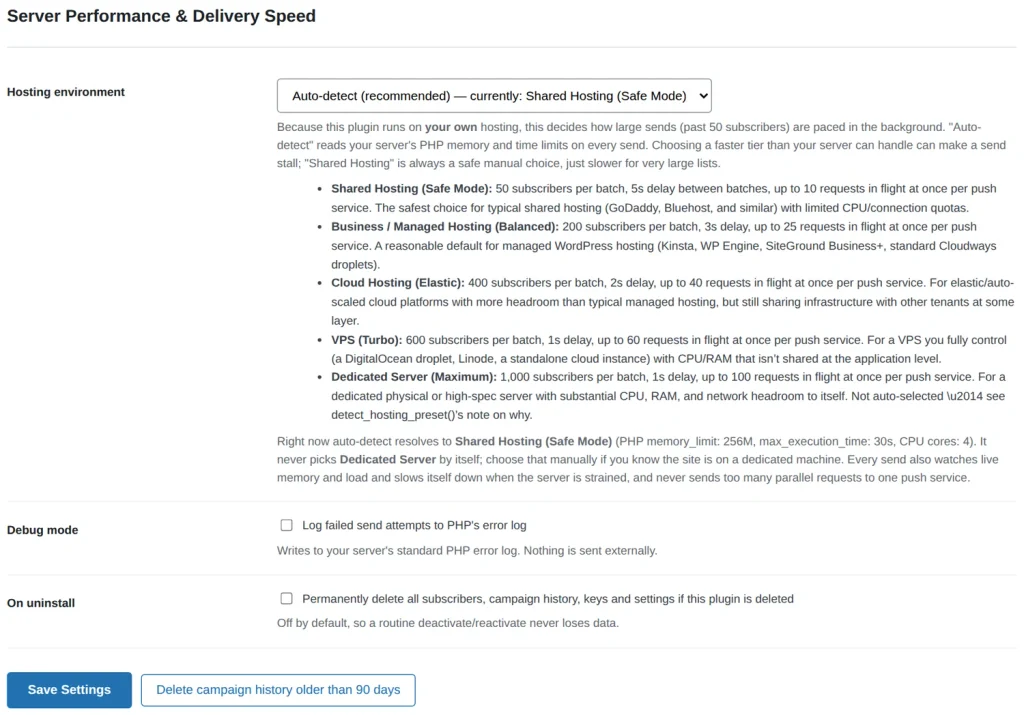
WP Push Notify runs on your own hosting, so your server does the sending. For large sends (past 50 subscribers), the plugin sends in batches with short pauses so it does not overload your server. The Hosting environment menu decides how big the batches are.
- Auto-detect (recommended): reads your server’s PHP memory and time limits on every send and picks a safe preset. The menu shows what it currently resolves to, along with your memory limit, execution time and CPU cores. It never picks Dedicated Server by itself.
- Shared Hosting (Safe Mode): 50 subscribers per batch, 5 seconds between batches, up to 10 requests at once per push service. The safest choice for typical shared hosting.
- Business / Managed Hosting (Balanced): 200 per batch, 3 seconds, 25 at once. Good for managed WordPress hosts.
- Cloud Hosting (Elastic): 400 per batch, 2 seconds, 40 at once.
- VPS (Turbo): 600 per batch, 1 second, 60 at once, for a VPS you fully control.
- Dedicated Server (Maximum): 1,000 per batch, 1 second, 100 at once. Choose it manually only if you know the site is on a dedicated machine.
Picking a faster tier than your server can handle can make a send stall, while Shared Hosting is always a safe manual choice, just slower for very large lists. Whatever you choose, every send also watches live memory and load and slows down when the server is strained.
4. Debug mode, uninstall and clean-up
- Debug mode: logs failed send attempts to your server’s standard PHP error log. Nothing is sent anywhere else. Turn it on when you are troubleshooting, and off again afterwards.
- On uninstall: when ticked, deleting the plugin also permanently deletes all subscribers, campaign history, keys and settings. It is off by default, so a normal deactivate and reactivate never loses data. Leave it off unless you really want a clean wipe.
- Delete campaign history older than 90 days: removes old entries from the Campaigns list after you confirm. It cannot be undone.
Click Save Settings after changing the hosting environment, debug mode or uninstall options.
5. WooCommerce notifications
If WooCommerce is active, this tab shows four automatic notifications for your shop. If it is not active, you only see a short note saying they will appear when it is. All four are off by default, so turn on only the ones you want. They use the same subscriber list and delivery settings as everything else.
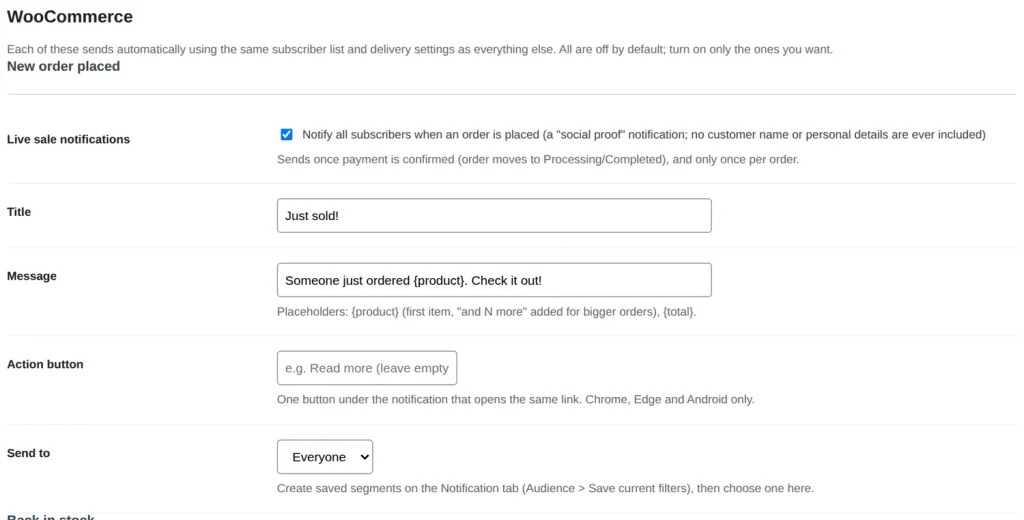
New order placed (live sale notifications)
Notifies all subscribers when an order is placed. It works as social proof, and no customer name or personal details are ever included. It is sent once payment is confirmed (when the order moves to Processing or Completed), and only once per order. Edit the Title and Message; the placeholders are {product} (the first item, with “and N more” added for bigger orders) and {total}.
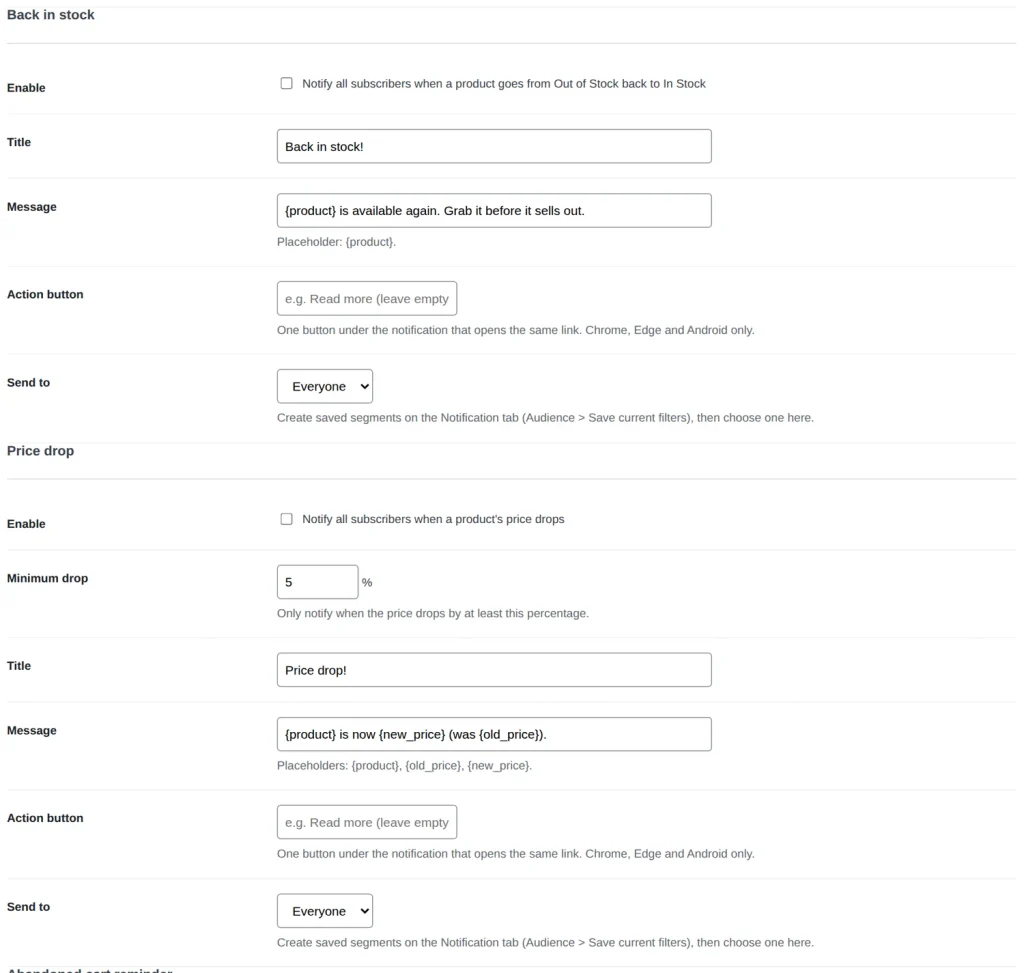
Back in stock
Notifies all subscribers when a product goes from Out of Stock back to In Stock. Use the placeholder {product} in your text.
Price drop
Notifies all subscribers when a product’s price drops. Minimum drop sets how big the drop must be, from 1% to 90% (the default is 5%), so tiny changes do not trigger a message. Placeholders: {product}, {old_price} and {new_price}.
The first three types also have the same Action button and Send to options you know from the Dashboard, so you can add a button or limit the audience to a saved segment.
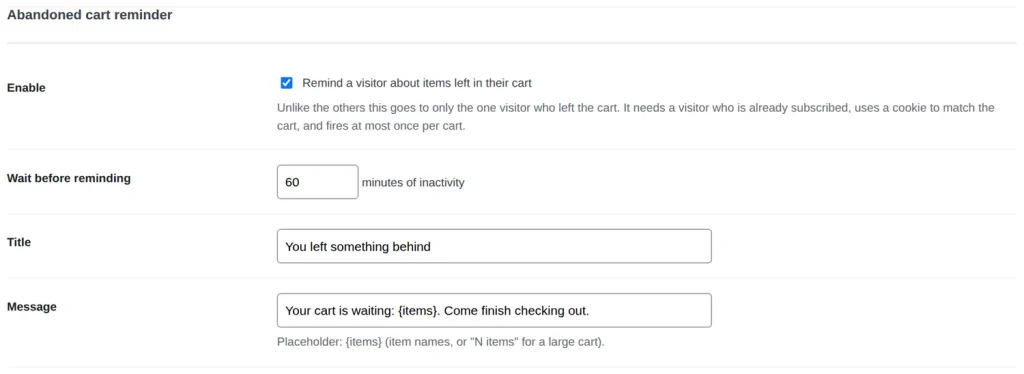
Abandoned cart reminder
Unlike the others, this goes to only the one visitor who left the cart. It needs a visitor who is already subscribed, uses a cookie to match the cart, and fires at most once per cart. Wait before reminding sets the minutes of inactivity before the reminder (10 to 1,440, default 60). The placeholder is {items}, which lists the item names, or “N items” for a large cart.
Click Save WooCommerce Settings when you are done.
Frequently asked questions
Which warnings can I ignore?
Yellow warnings mean the plugin still works. cURL missing only makes sending slower, plain permalinks only affect an optional file, and a missing zip extension only changes the Excel download. A red mark, such as HTTPS or push keys, must be fixed.
Why does a scheduled campaign go out late?
If WP-Cron is disabled and there is no real cron job, scheduled and large background sends can run late. Set up a real cron job that calls wp-cron.php, as the check suggests.
Which hosting setting should I choose?
Leave Auto-detect on. If a large send stalls, switch to Shared Hosting (Safe Mode). Only move up if your host can handle it.
Do WooCommerce messages include customer names?
No. The new order notification never includes a customer name or personal details.
Will push work for my iPhone visitors?
Only if they add your site to their Home Screen first, because that is an Apple rule. Everyone else on supported browsers can subscribe directly.
What’s next
With your server checked, continue with the guide to the Connect tab, which holds the connection settings and the tools for linking a non-WordPress site.
1 comment