

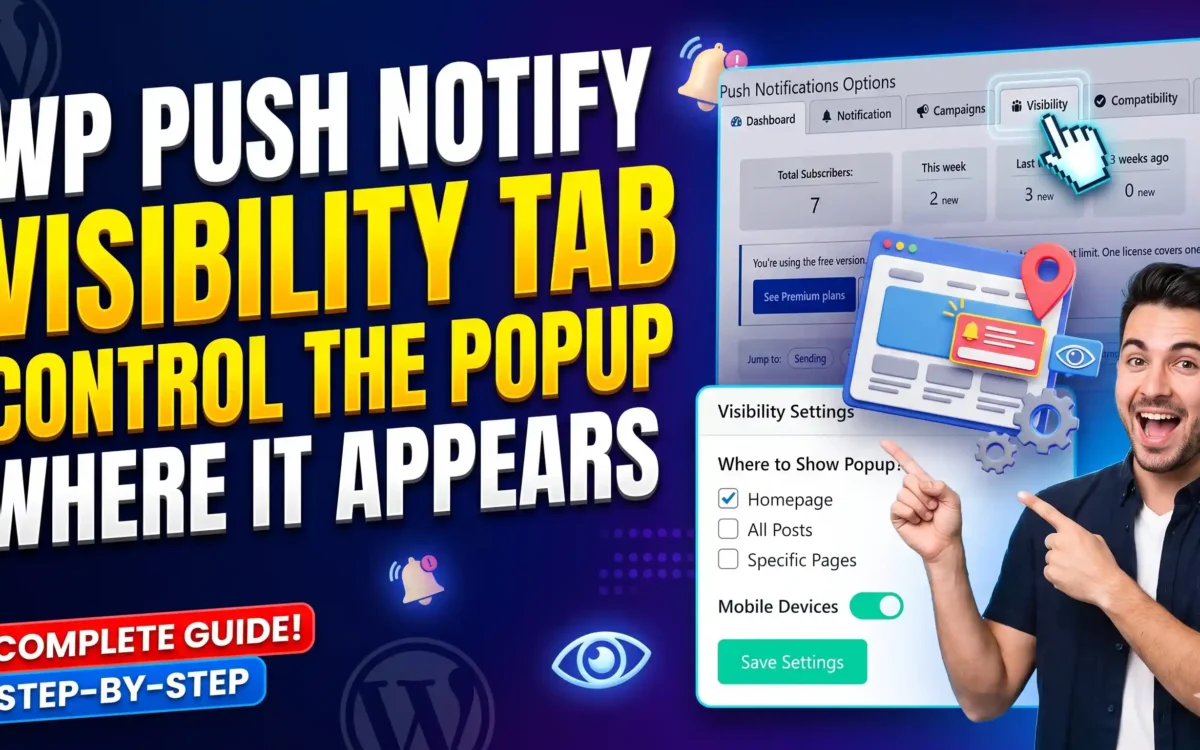
The Visibility tab lets you choose where your subscribe popup and floating bell are allowed to appear. A popup is helpful on a blog post, but annoying on a checkout page. This short tab gives you simple controls to keep the popup away from pages, people and devices where it does not belong.
Open WP Push Notify in your WordPress menu and click Visibility. The rules here apply to the automatic popup and the floating bell that you set up on the Dashboard. The shortcode is never hidden, because you placed it on that page on purpose.
1. The Visibility tab at a glance
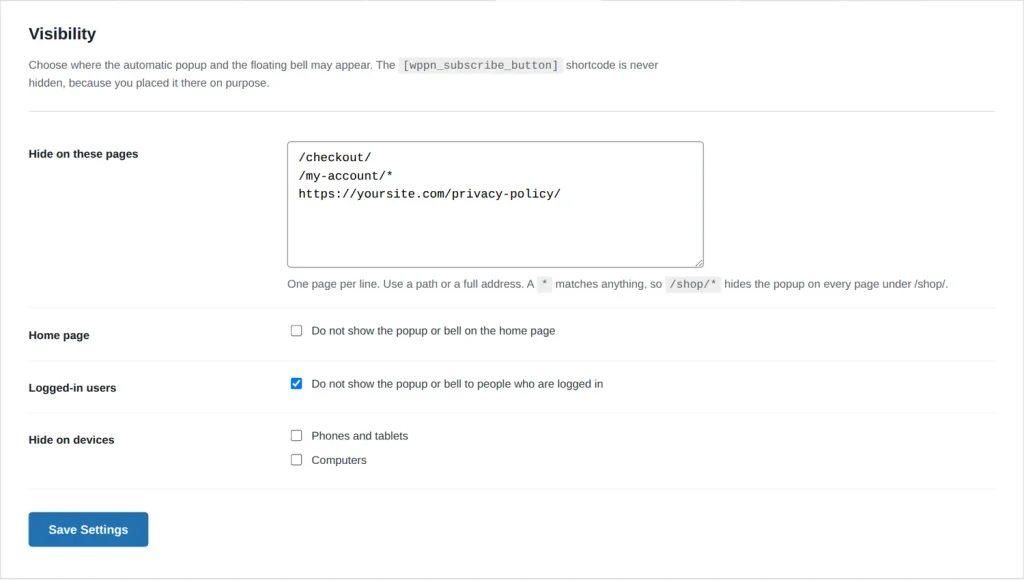
There are four settings. Change what you need and click Save Settings at the bottom. If you do not change anything, the popup can appear everywhere.
2. Hide on these pages
Type one page per line in the box. You can use a short path or a full address:
/checkout/hides the popup on your checkout page./my-account/*hides it on the account page and every page below it.https://yoursite.com/privacy-policy/works too. Only the page path of a full address is used.
The * sign means “anything”. So /shop/* hides the popup on every page under /shop/. A few things that make this forgiving:
- A trailing slash does not matter:
/checkoutand/checkout/are the same. - Upper and lower case do not matter.
- If WordPress is installed in a sub-folder, you can still write paths from your site’s own home, such as
/checkout/.
3. Home page
Tick Do not show the popup or bell on the home page if you want visitors to see your site first. This covers your front page and your blog home page. It is a good choice if your home page is a design-heavy landing page.
4. Logged-in users
Tick Do not show the popup or bell to people who are logged in to skip people who are signed in to your WordPress site, such as you, your editors, or members who are already loyal customers. It also stops you from seeing your own popup every time you preview your site.
5. Hide on devices
- Phones and tablets: tick this to hide the popup and bell on mobile devices.
- Computers: tick this to hide them on desktop and laptop computers.
Be careful not to tick both, because that would hide the popup from everyone.
6. Practical examples
- Online shop: hide on
/cart/,/checkout/and/my-account/*so nothing distracts a customer who is about to pay. - Blog with a landing page: tick Home page, so the popup shows on articles where readers are already interested.
- Membership site: tick Logged-in users, so only new visitors are asked to subscribe.
- Legal pages: add
/privacy-policy/and/terms/so people can read them without interruption.
After saving, open your site in a private window to check the result. Remember that visitors who clicked Later may not see the popup again until your timing settings on the Dashboard allow it.
Frequently asked questions
Does Visibility hide the subscribe button shortcode?
No. The shortcode always works wherever you place it.
Why can I still see the popup on a page I hid?
Check that the path is typed exactly as it appears in the address bar, and clear your cache plugin. Use * when you want a whole section to be covered.
Where do I change how the popup looks?
On the Dashboard. Visibility only decides where it may appear, not how it looks or when it shows.
Will hiding the popup remove existing subscribers?
No. It only controls what visitors see. Your subscribers stay on your list.
What’s next
With the popup placed where you want it, continue with the guide to the Compatibility tab, which checks that your site is ready to send push notifications.
1 comment