
The Dashboard tab is the first screen you see after installing WP Push Notify, and it is also where most of your settings live. Open it from WP Push Notify in your WordPress menu. It shows how many people have subscribed, controls when and how notifications are sent, and lets you design the popup that asks visitors to subscribe.
This guide walks through the Dashboard from top to bottom, one option at a time, in plain language. You do not need any technical background. Every setting is saved with the Save Settings button at the very bottom of the page, so you can change several things and save once.
1. The subscriber stats bar
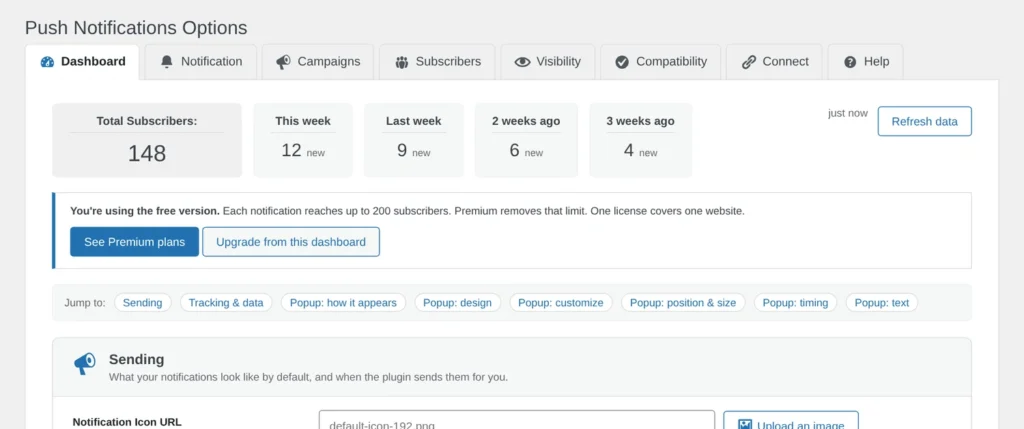
The row of boxes at the top is your quick health check.
- Total Subscribers is the number of people who have allowed notifications on your site.
- This week, Last week, 2 weeks ago and 3 weeks ago show how many new subscribers joined in each period. They are rolling seven-day blocks counted back from right now, not calendar weeks, so “This week” means the last seven days.
- Refresh data reloads the numbers. To keep your admin fast on large lists, the total is saved for about a minute, and the small text next to the button (for example “just now”) tells you how fresh it is.
Tip: if the “new” boxes keep falling week after week, that is usually a sign your popup needs a better design, better wording or better timing. The sections below cover all three.
2. The free-version upgrade box
On the Free plan you will see a blue notice under the stats bar. It reminds you that each notification reaches up to 200 subscribers and that Premium removes that limit. One Premium license covers one website. See Premium plans opens the pricing section of the plugin website, and Upgrade from this dashboard starts the upgrade without leaving WordPress. Once you are on Premium, this box disappears.
The “Jump to” menu
Under the notice is a row of small pill-shaped links: Sending, Tracking & data, and six popup sections. The Dashboard is a long page, so these links scroll you straight to the section you want. The rest of this guide follows the same order.
3. Sending
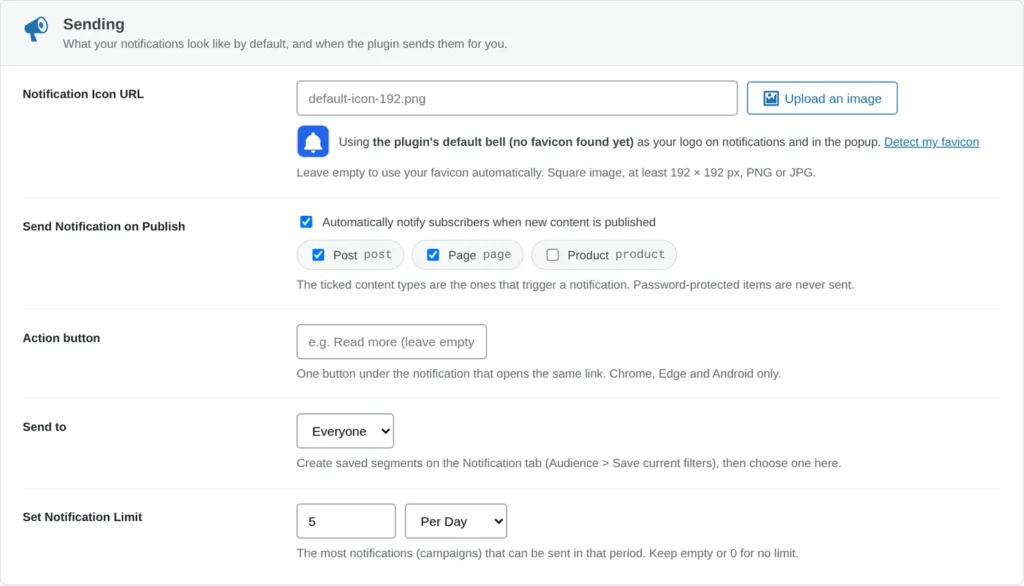
This section controls what your notifications look like by default and when the plugin sends them for you.
Notification Icon URL
This is the small picture that appears on every notification and inside the subscribe popup. You have two ways to set it:
- Click Upload an image and pick a picture from your media library, or paste an image address into the box.
- Leave the box empty and let the plugin find a logo for you.
When the box is empty, the plugin looks for a logo in this order: the icon you entered, your WordPress Site Icon, the favicon found on your home page, and finally the plugin’s own default bell. The line under the box always tells you which one is being used. If it picked the wrong one, click Detect my favicon to scan your home page again. For the best result use a square PNG or JPG at least 192 × 192 pixels.
Send Notification on Publish
Tick this box and WP Push Notify will automatically notify your subscribers whenever you publish new content, with no extra work from you. Below the checkbox you choose which kinds of content trigger a notification, such as Posts, Pages or product types. Only the ticked types are sent. Password-protected items are never sent.
Action button
Adds one button under the notification text, for example “Read more”. It opens the same link as the notification itself. Leave it empty for no button. It is limited to 30 characters and, because of how browsers work, it only shows in Chrome, Edge and on Android.
Send to
Choose who receives your automatic notifications. Everyone is the default. If you have saved an audience (a segment) on the Notification tab, using Audience > Save current filters, it appears in this list so you can send automatic notifications to just that group. If you delete a saved segment that is still selected here, nothing will be sent until you pick another audience, and the plugin shows a warning to tell you so.
Set Notification Limit
Type a number and choose Per Day, Per Week or Per Month to cap how many notifications (campaigns) can go out in that period. This protects your subscribers from being over-messaged. Leave it empty or set it to 0 for no limit.
4. Link tracking and subscriber data
This section helps you measure results and decide what information is saved about each subscriber.
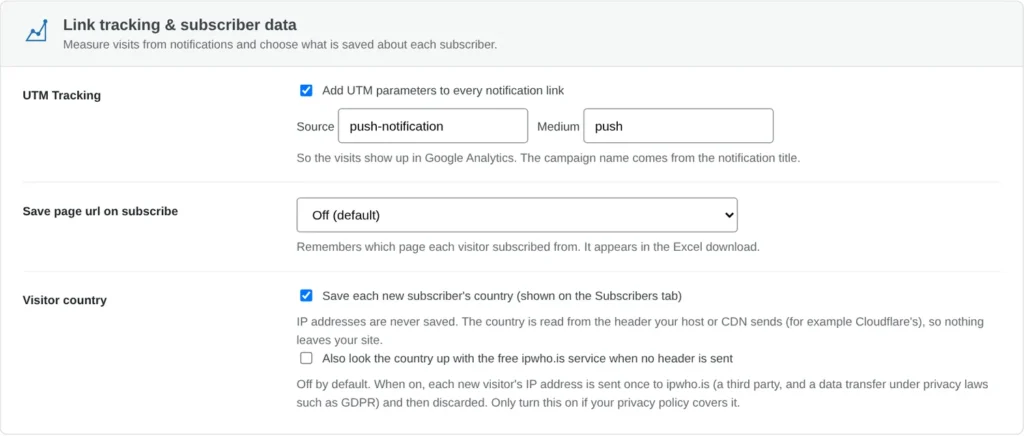
UTM Tracking
Tick Add UTM parameters to every notification link and each link gets a small tag at the end, so visits from your notifications show up in Google Analytics as their own source. You can change the Source (default push-notification) and the Medium (default push). The campaign name is taken automatically from the notification title.
Save page url on subscribe
Remembers which page each visitor was on when they subscribed. The result appears in the Excel download from the Subscribers tab. There are three choices:
- Off (default): nothing is saved.
- Browser script (exact page address): the most precise option.
- Referrer header (server side): read on your server instead of in the browser.
Visitor country
When ticked, each new subscriber’s country is saved and shown on the Subscribers tab. IP addresses are never saved. The country is read from a header your hosting or CDN already sends, such as the one Cloudflare adds, so nothing leaves your site.
A second checkbox, Also look the country up with the free ipwho.is service, is off by default. If you turn it on, each new visitor’s IP address is sent once to ipwho.is (a third-party service) and then discarded. That counts as a data transfer under privacy laws such as GDPR, so only enable it if your privacy policy covers it.
5. Subscription popup: how it appears
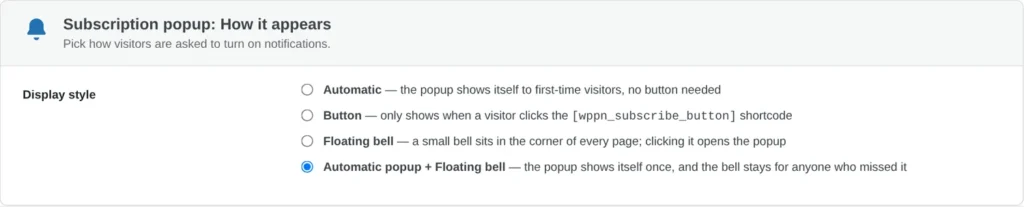
Pick how visitors are asked to turn on notifications:
- Automatic: the popup shows itself to first-time visitors. No button needed.
- Button: the popup only appears when a visitor clicks a button that you place with the
shortcode. - Floating bell: a small bell sits in the corner of every page, and clicking it opens the popup.
- Automatic popup + Floating bell: the popup shows itself once, and the bell stays for anyone who missed it.
If you are not sure, the last option is a friendly default: it asks once, then stays out of the way.
6. Subscription popup: Design
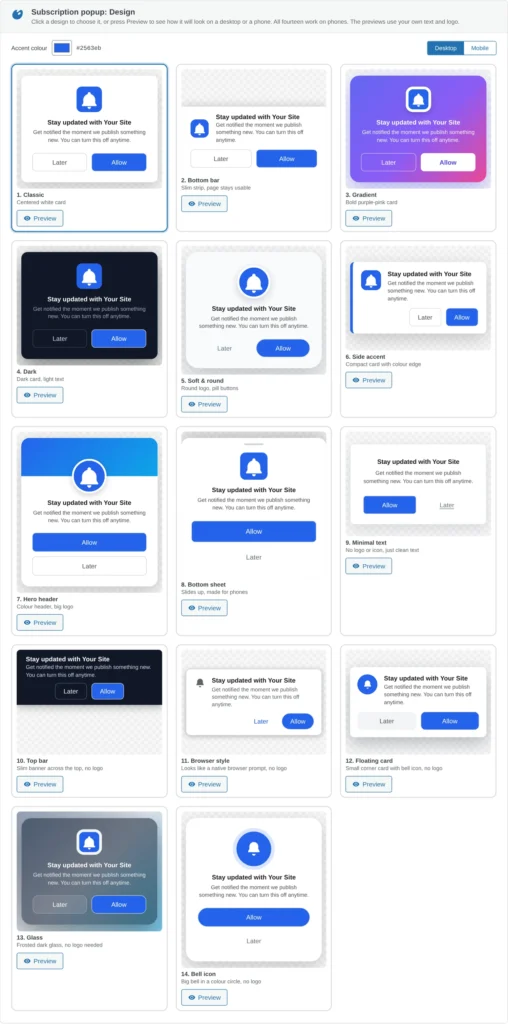
Here you choose how the popup looks. Click a design card to select it. The cards update live and use your own logo and wording, so what you see is close to what visitors will see. All fourteen designs work on phones.
- 1. Classic: centered white card
- 2. Bottom bar: slim strip, page stays usable
- 3. Gradient: bold purple-pink card
- 4. Dark: dark card, light text
- 5. Soft & round: round logo, pill buttons
- 6. Side accent: compact card with a colour edge
- 7. Hero header: colour header, big logo
- 8. Bottom sheet: slides up, made for phones
- 9. Minimal text: no logo or icon, just clean text
- 10. Top bar: slim banner across the top, no logo
- 11. Browser style: looks like a native browser prompt, no logo
- 12. Floating card: small corner card with a bell icon, no logo
- 13. Glass: frosted dark glass, no logo needed
- 14. Bell icon: big bell in a colour circle, no logo
Above the cards you will find two controls. Accent colour sets the main colour used on buttons and highlights (the default is blue, #2563eb). The Desktop / Mobile switch changes how the previews are shown.
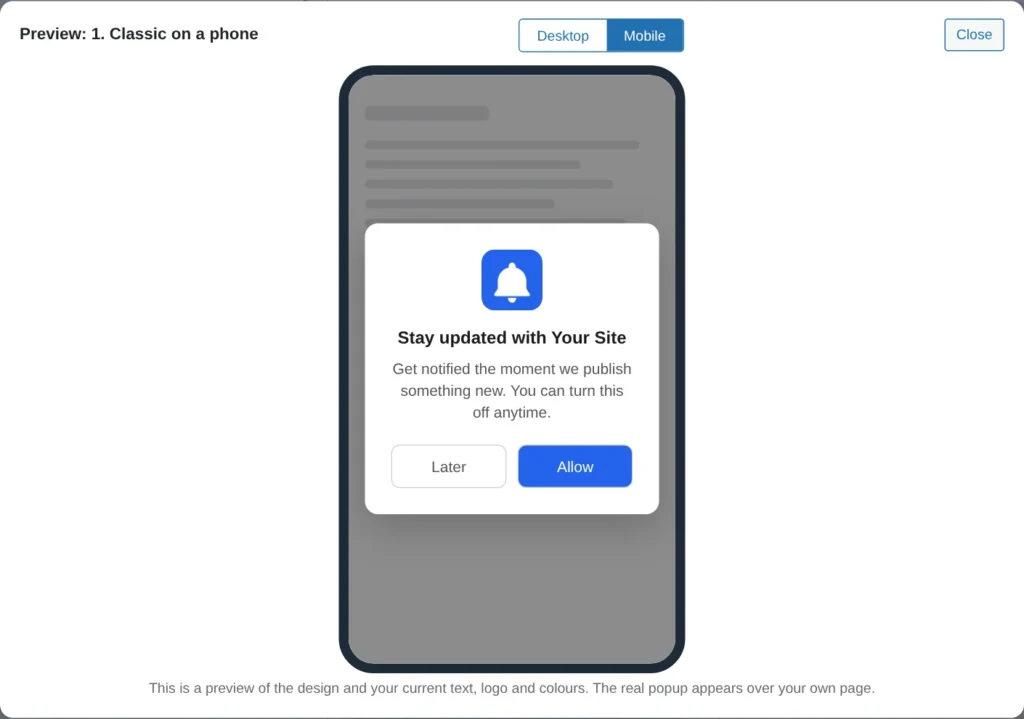
The Preview window
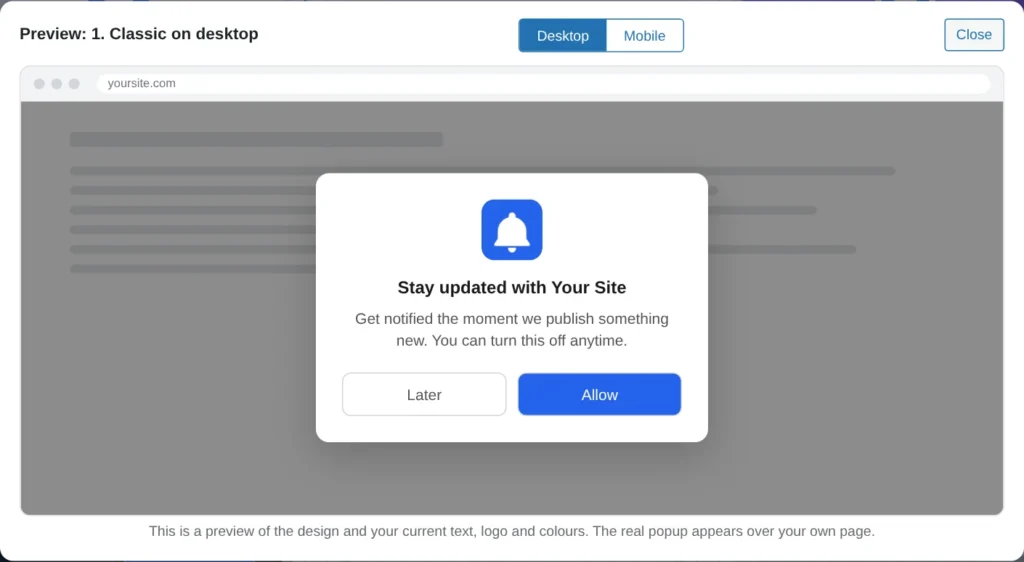
Press Preview under any design to open it in a larger window. You will see your popup over a mock website, and you can flip between Desktop and Mobile to check both. Nothing is saved or sent while you preview.
7. Subscription popup: Customize
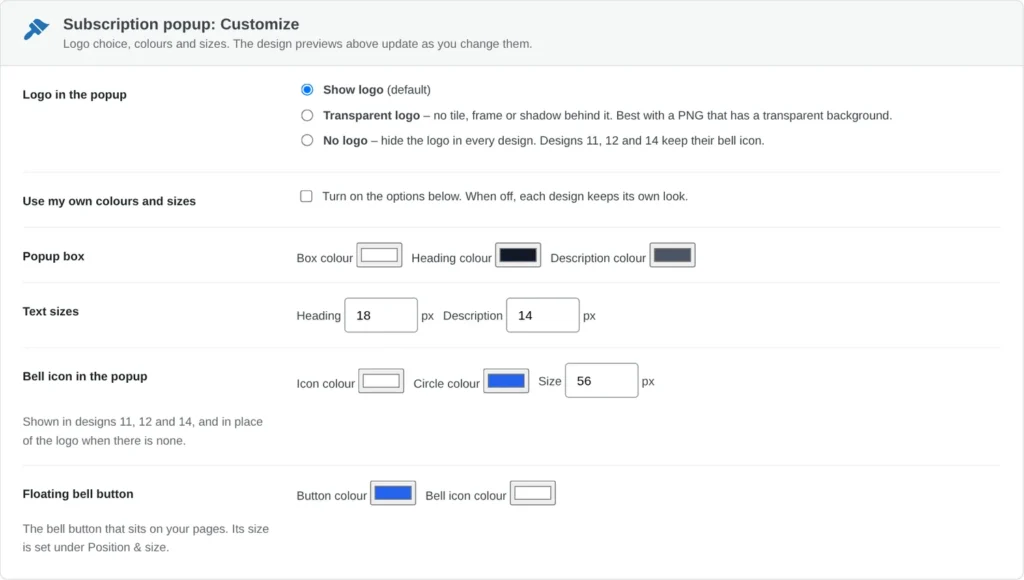
Logo in the popup
- Show logo (default): your logo appears in the popup.
- Transparent logo: removes the tile, frame and shadow behind the logo. It looks best with a PNG that has a transparent background.
- No logo: hides the logo in every design. Designs 11, 12 and 14 keep their bell icon.
Use my own colours and sizes
This is the master switch for everything below it. While it is off, each design keeps its own built-in look. Turn it on to apply your own choices:
- Popup box: box colour, heading colour and description colour.
- Text sizes: heading size (12 to 40 px) and description size (10 to 28 px).
- Bell icon in the popup: icon colour, circle colour and size (16 to 96 px). This is used in designs 11, 12 and 14, and in place of the logo when there is none.
Floating bell button
Sets the button colour and the bell icon colour for the floating bell that sits on your pages. Its size is set in the next section.
8. Subscription popup: Position & size
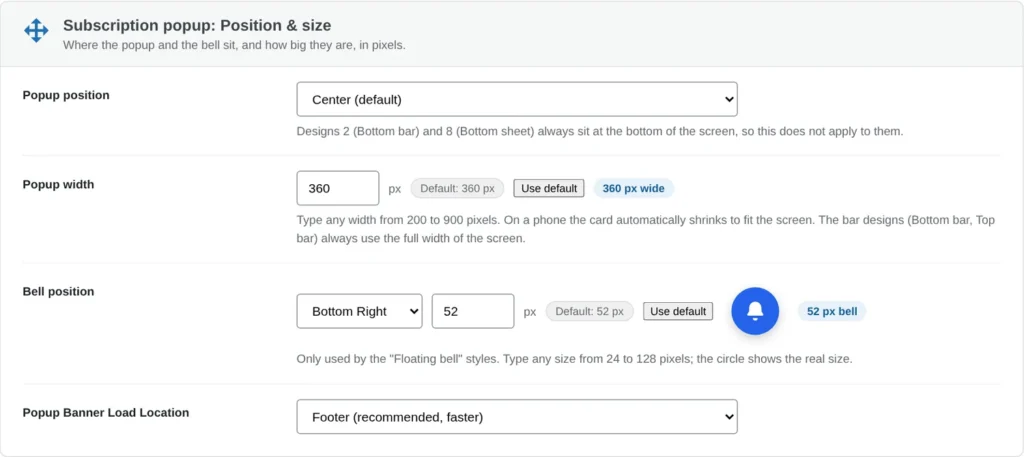
- Popup position: Center (default) or one of eight spots: Top Left, Top Center, Top Right, Middle Left, Middle Right, Bottom Left, Bottom Center, Bottom Right. Designs 2 (Bottom bar) and 8 (Bottom sheet) always sit at the bottom of the screen, so this setting does not apply to them.
- Popup width: type any width from 200 to 900 pixels (default 360). On a phone the card shrinks automatically to fit. The bar designs always use the full screen width. Click Use default to go back to 360.
- Bell position and size: pick a corner or side for the floating bell and type a size from 24 to 128 pixels (default 52). The circle next to the box shows the real size. This only matters if you use one of the Floating bell styles.
- Popup Banner Load Location: Footer (recommended, faster) or Header. Leave it on Footer unless a support guide tells you otherwise.
9. Subscription popup: Timing
Show after
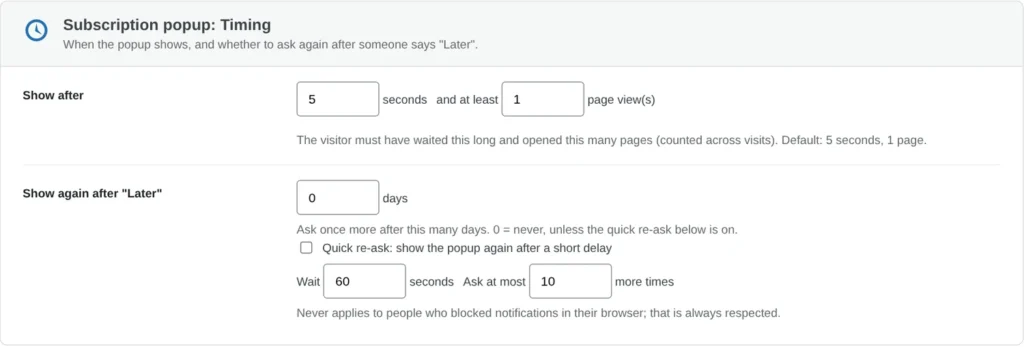
Set the number of seconds (0 to 120) a visitor must wait and the number of page views (1 to 50) they must have opened before the popup appears. Page views are counted across visits. The default is 5 seconds and 1 page. Asking a little later, once a visitor has read something, usually feels less pushy.
Show again after “Later”
If someone clicks Later, you can ask once more after a number of days (0 to 365). Set 0 to never ask again.
Quick re-ask
Tick this to show the popup again after a short delay. Choose how many seconds to wait (5 to 86,400, default 60) and the maximum number of extra times to ask (0 to 50, default 10). This never applies to people who blocked notifications in their browser, because that choice is always respected.
10. Subscription popup: Text & messages
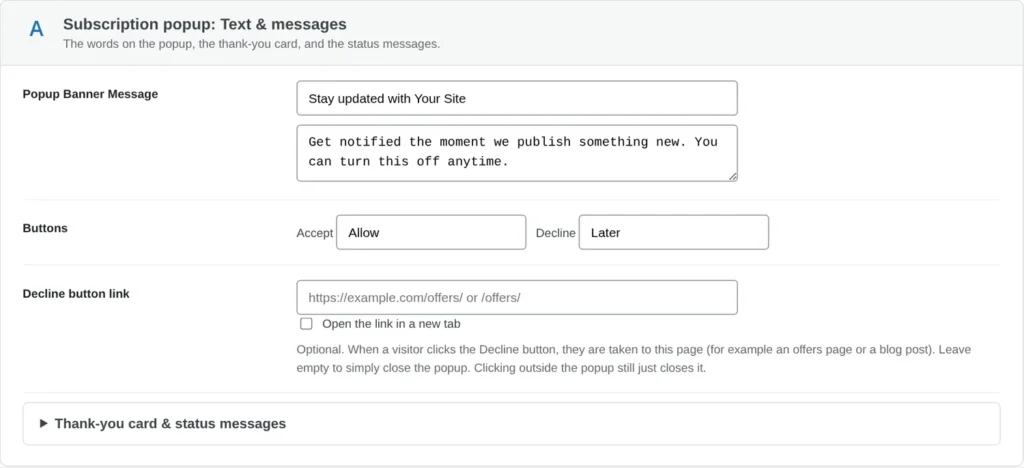
- Popup Banner Message: the heading and the short description. The default heading is “Stay updated with” followed by your site name.
- Buttons: change the labels. The accept button is “Allow” by default and the decline button is “Later”.
- Decline button link: optional. When a visitor clicks the decline button they go to this page (an offers page or a blog post, for example). You can type a full address or a path like
/offers/, and tick the box to open it in a new tab. Leave it empty to simply close the popup. Clicking outside the popup always just closes it.
Thank-you card and status messages
Click this heading to expand it. It holds:
- Show thank-you card: a short card shown once, right after a visitor clicks Allow, with its own headline and message.
- While connecting: the brief message shown while the subscription is being set up.
- If permission wasn’t granted: shown when the browser does not grant permission. This covers the common case where an Incognito or private window silently blocks the prompt.
- On an unexpected error: shown if something goes wrong while turning notifications on.
Do not forget to click Save Settings when you are finished.
A simple starter setup
If you want a sensible setup in a few minutes, try this:
- Leave the icon empty so your favicon is used, and check the line under it says the right source.
- Tick Send Notification on Publish and keep only Post ticked.
- Turn on UTM Tracking so you can see the results in Google Analytics.
- Choose Automatic popup + Floating bell, pick a design and press Preview on Desktop and Mobile.
- Keep the timing at 5 seconds and 1 page, or raise it a little if visitors close the popup too quickly.
- Click Save Settings.
Frequently asked questions
Where do I find the Dashboard tab?
In your WordPress admin, open WP Push Notify in the left menu. The Dashboard is the first tab. The other tabs are Notification, Campaigns, Subscribers, Visibility, Compatibility, Connect and Help.
Do my changes apply to visitors straight away?
They apply once you click Save Settings. If your site uses a caching plugin and you do not see a change, clear the cache and reload the page.
Why does the popup not show for me after I clicked Later?
That is expected. After Later, the popup stays hidden until your “Show again” or “Quick re-ask” settings allow it. To test again, use a private window or clear your site data.
Is the visitor’s IP address stored?
No. IP addresses are never saved. Country detection uses a header from your host or CDN, and the optional ipwho.is lookup is off unless you turn it on.
What is the limit on the Free plan?
Each notification reaches up to 200 subscribers on Free. Premium removes that limit, and one license covers one website. You can see current plans on wppushnotify.com.
What’s next
Now that the Dashboard is set up, the next step is writing your first message. Continue with the guide to the Notification tab, where you compose and send notifications, preview them and target an audience.
1 comment