
The WP Push Notify Notification tab is where you write and send a push notification by hand. Open WP Push Notify in your WordPress menu and click Notification. Everything happens on one screen: you pick a look, type your message, choose who gets it, decide when it goes out, and watch a live phone preview update as you type.
This guide walks through the tab from top to bottom. If you have not set up your icon, popup and automatic sending yet, start with the Dashboard guide first. Notifications that go out automatically when you publish a post use the Dashboard settings, while this tab is for messages you write yourself, such as an offer, an announcement or a reminder.
1. Select push notification design
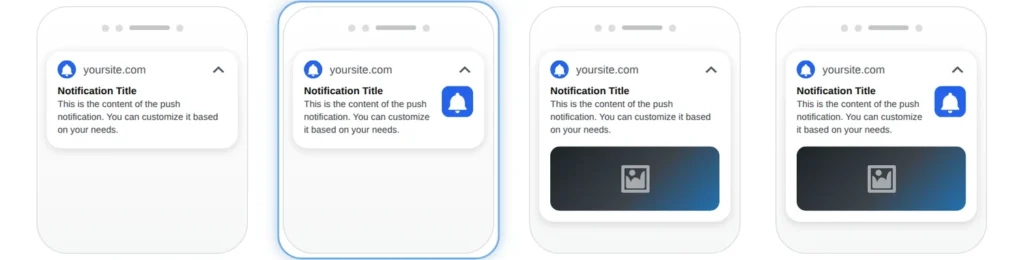
At the top you choose how the notification is laid out. Each small phone shows what it will look like. Click one to select it (the selected one gets a blue outline). Text with icon is selected by default.
- Text only: just a title and a message. The simplest and the fastest to write.
- Text with icon: adds a small square picture on the right of the text, usually your logo.
- Text with banner image: adds a wide picture under the text.
- Text with icon and banner image: uses both.
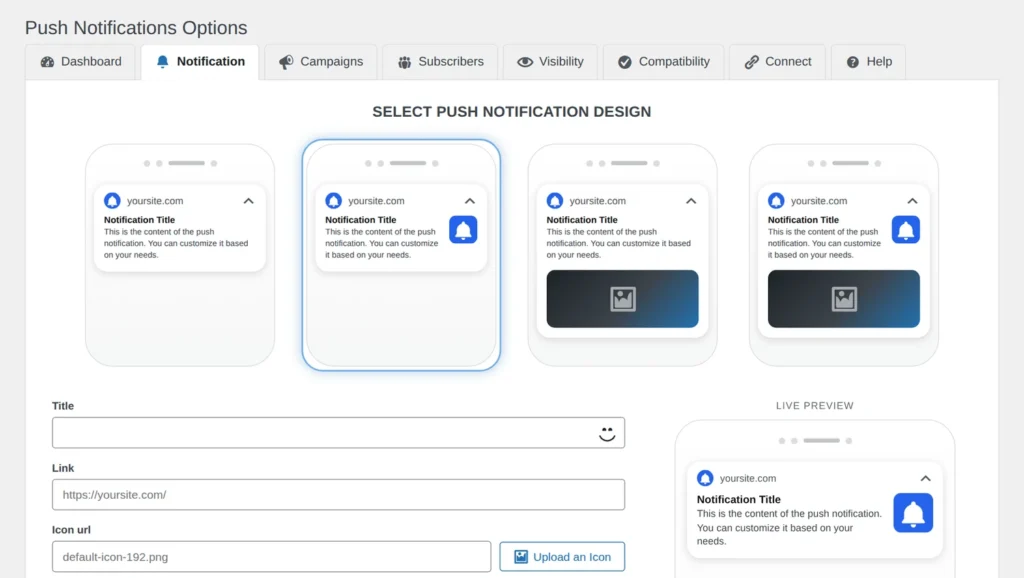
The design you pick decides which fields appear below. The Icon url field only shows for the two designs with an icon, and the Banner url field only shows for the two designs with a banner, so the form never asks for things you will not use.
2. Title, link, icon, banner and message
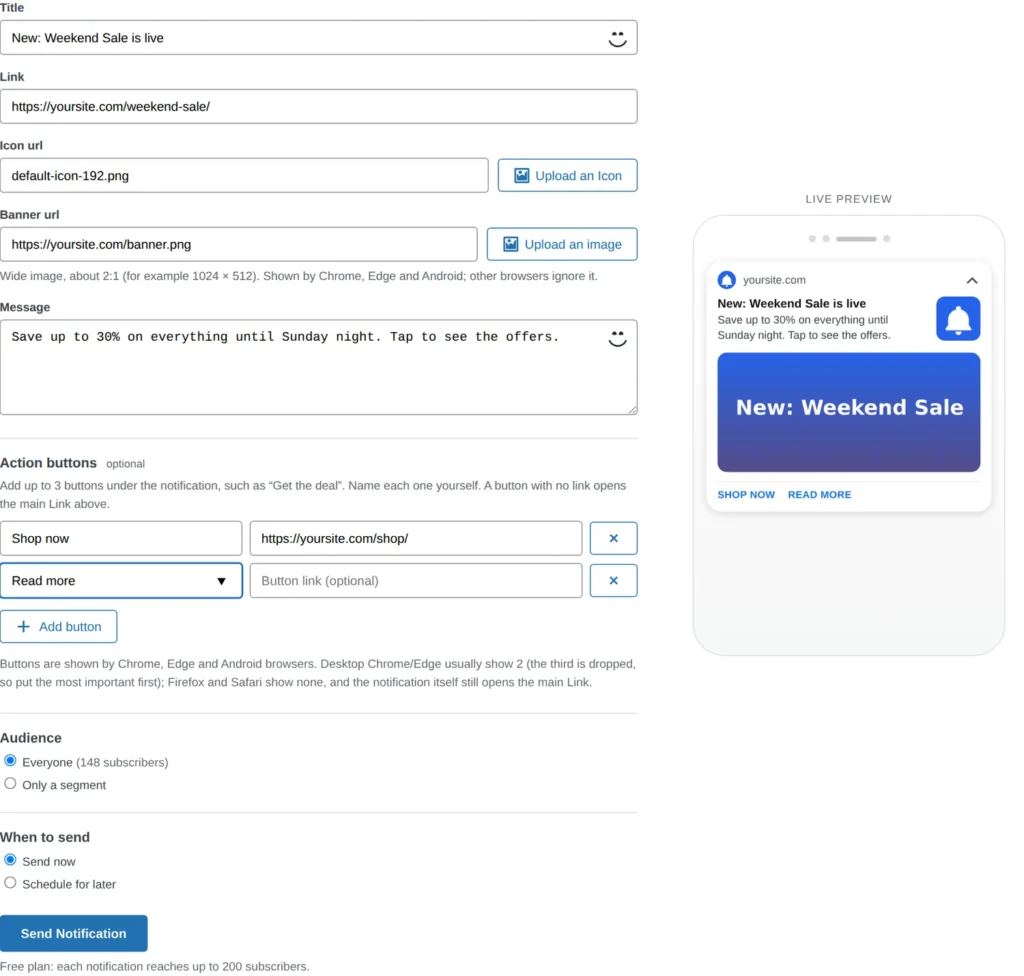
Title
The bold first line. It is required and can be up to 120 characters. Keep it short, because phones cut long titles off. Click the smiley button at the right end of the box to add an emoji.
Link
The page that opens when someone taps the notification. Paste the full address, for example your new blog post or an offer page. If you leave it empty, the notification opens your home page, shown in the box as the grey example text.
Icon url
The small square picture. You can paste an address or click Upload an Icon to choose one from your media library. This box starts with the icon you set on the Dashboard, so most of the time you can leave it alone. It only appears for designs 2 and 4.
Banner url
The wide picture shown under the text. Click Upload an image or paste an address. Use an image with about a 2:1 shape, for example 1024 × 512 pixels. Chrome, Edge and Android show it; other browsers ignore it, so never put the only copy of your message inside the picture. It only appears for designs 3 and 4.
Message
The body text, required, up to 400 characters. It also has an emoji button. Say what is in it for the reader in the first few words, because the rest may be shortened on small screens.
3. The live preview
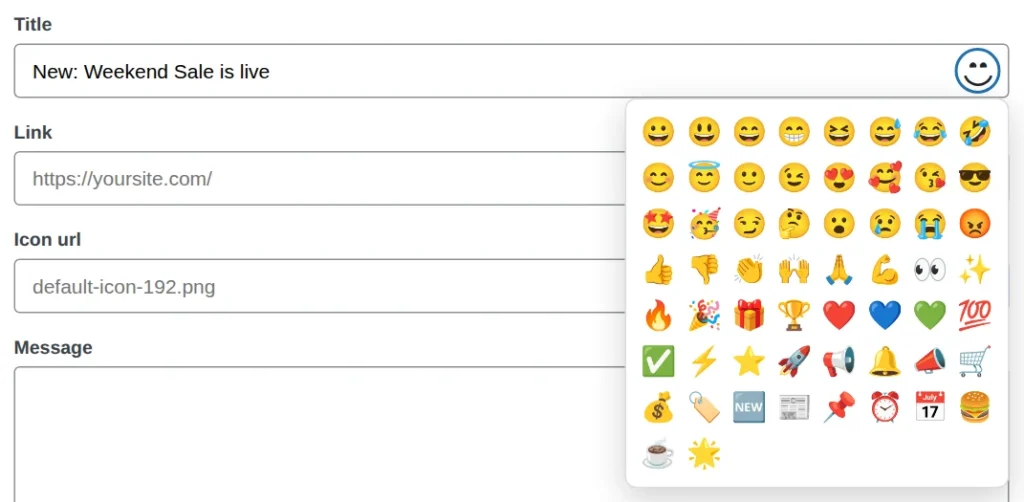
On the right of the form you will see a phone labelled Live preview. It updates as you type: your title, message, icon and banner appear instantly, and so do any action buttons you add. The preview stays in view while you scroll down the form, so you can check the result without scrolling back up. It is an approximation: each browser and phone draws notifications a little differently, but the order and content will match.
4. Action buttons (optional)
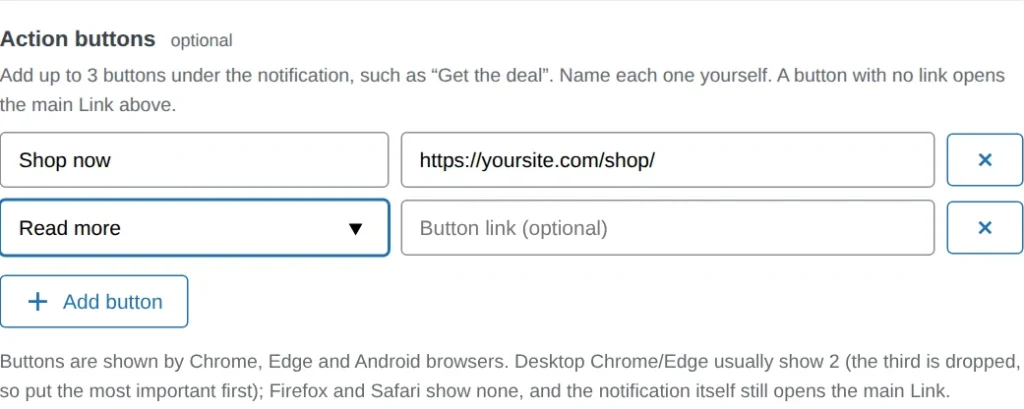
You can add up to three buttons that appear under the notification, such as “Shop now” or “Read more”. For each one:
- Type the button name (up to 30 characters). The box suggests popular names such as Get the deal, Shop now, Read more, Claim offer, View details and Book now, or you can type your own.
- Optionally add a button link. If you leave it empty, the button opens the main Link above.
- Click Add button for the next one, or the × to remove one.
Buttons only show in Chrome, Edge and Android browsers. Desktop Chrome and Edge usually show just two, so put the most important button first. Firefox and Safari show none, and the notification itself still opens the main Link, so nothing is lost.
5. Audience
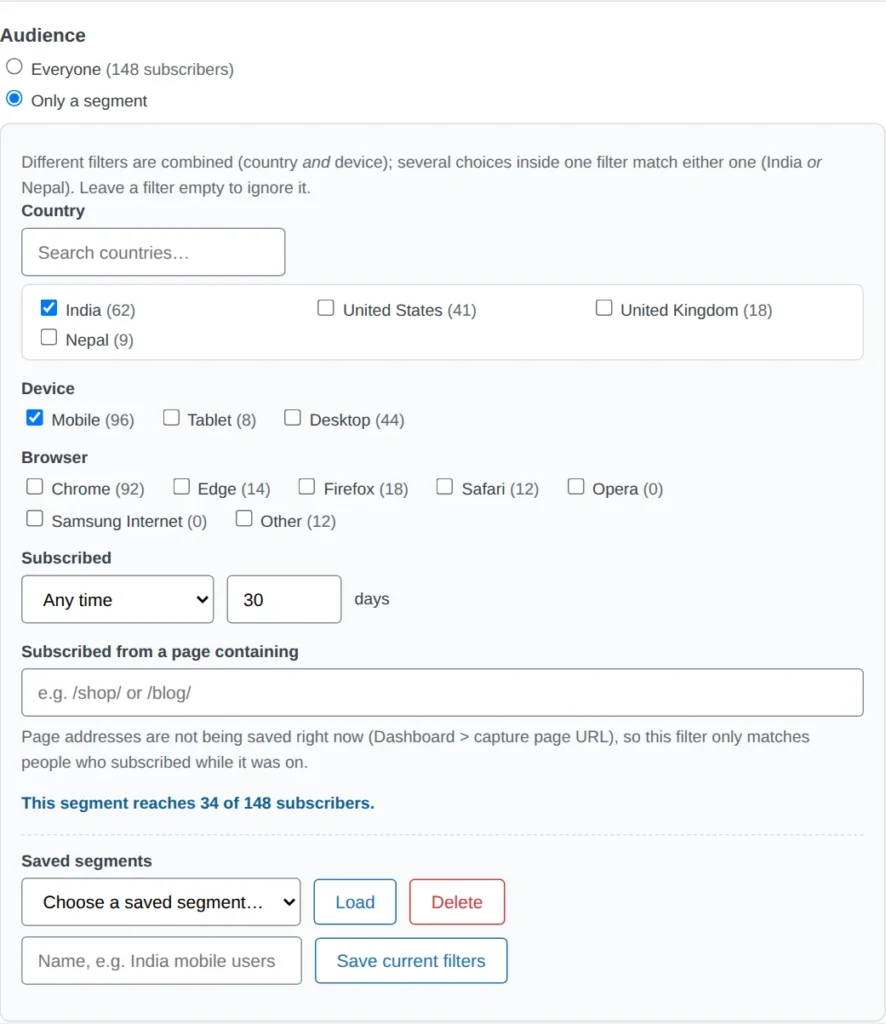
Choose who receives this notification.
- Everyone: all subscribers. The number next to it is your total.
- Only a segment: opens filters so you can target a group.
How the filters work
Different filters are combined with and, while several choices inside one filter match either one. For example, ticking India and Nepal under Country, plus Mobile under Device, reaches mobile users in India or Nepal. A filter you leave empty is ignored.
- Country: a searchable list of the countries your subscribers come from, each with a count. It needs country saving to be on in the Dashboard. If no country has been saved yet, the box tells you so.
- Device: Mobile, Tablet or Desktop, each with a count.
- Browser: Chrome, Edge, Firefox, Safari, Opera, Samsung Internet or Other.
- Subscribed: Any time, In the last a number of days, or More than a number of days ago (1 to 3650 days). Useful for welcoming new subscribers or re-engaging old ones.
- Subscribed from a page containing: type part of an address such as
/shop/or/blog/to reach people who subscribed on those pages. This only works for people who subscribed while the Dashboard option “Save page url on subscribe” was on, and the plugin warns you when it is off.
As you change filters, a line under them says how many people you will reach, for example “This segment reaches 34 of 148 subscribers.” Check it before you send. If it says no subscribers match, loosen a filter.
Saved segments
If you send to the same group often, type a name (for example “India mobile users”) and click Save current filters. Next time, choose it from the list and click Load. Delete removes a saved one. Saved segments can also be chosen on the Dashboard for notifications sent automatically when you publish.
6. When to send
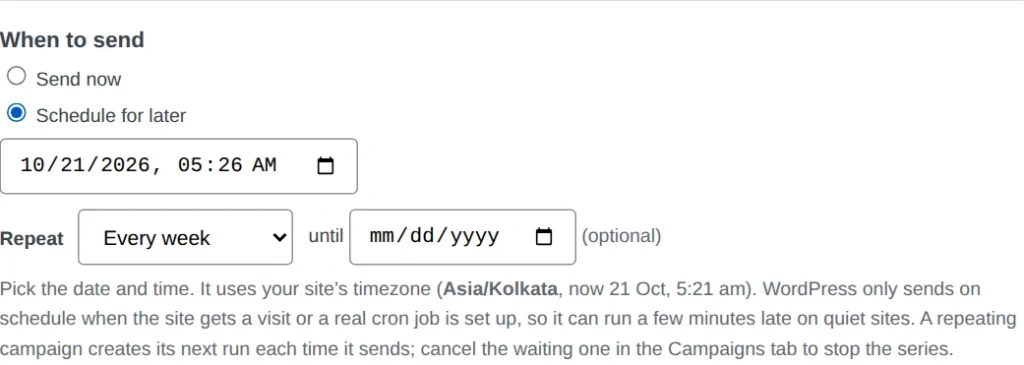
- Send now: goes out as soon as you click the button.
- Schedule for later: choose a date and time, which must be at least about five minutes from now. It uses your site’s timezone, which is shown with the current time so there is no guessing.
Repeat
For scheduled messages you can choose Does not repeat, Every day, Every week or Every month, and optionally an until date to end the series. A repeating campaign creates its next run each time it sends. To stop a series, cancel the waiting one in the Campaigns tab.
Good to know: WordPress only runs scheduled jobs when your site gets a visit or when a real server cron job is set up, so on a quiet site a scheduled notification can go out a few minutes late.
7. Sending and the free-plan limit

The main button says Send Notification when “Send now” is selected and changes to Schedule Campaign when you choose “Schedule for later”. On the Free plan, a note under it reminds you that each notification reaches up to 200 subscribers. Premium removes that limit. After sending, check the Campaigns tab to see the result.
8. Reuse and edit from the Campaigns tab
You do not have to start from a blank form every time. In the Campaigns tab, Reuse opens this form pre-filled with an earlier notification, including its design, text, images, buttons and audience, so you can tweak it and send it again. For a campaign that is scheduled but has not gone out yet, Edit opens the form with an amber “Editing a scheduled campaign” notice. Change anything, including the date and time, and save. The button then reads Save Changes for a later send or Save and Send Now to send immediately. Use Cancel editing to go back without changes.
9. Tips for notifications people open
- Lead with the benefit in the title, and keep the message to one clear idea.
- Send to a segment when the message only matters to some people, such as a local offer for one country.
- Put your most important button first, since some browsers show only two.
- Add UTM tracking on the Dashboard so you can see in Google Analytics how many visits each notification brings.
- Check the live preview and the reach count before you click send.
Frequently asked questions
What is the difference between this tab and sending on publish?
Sending on publish is an automatic setting on the Dashboard that notifies subscribers when you publish new content. The Notification tab is for messages you write yourself at any time.
Why does my banner image not show for some people?
Only Chrome, Edge and Android show banner images. Other browsers ignore them, but still show your title and message.
Can I send a notification to just one country?
Yes. Choose Only a segment and tick the country under Country. Turn on country saving in the Dashboard first, because only subscribers with a saved country appear in that list.
Can I change a scheduled notification?
Yes, until it is sent. Open the Campaigns tab and click Edit on the scheduled campaign.
How many subscribers will a free site reach?
Up to 200 per notification on the Free plan. See current plans on wppushnotify.com.
What’s next
Once you have sent a few notifications, the next step is seeing how they performed. Continue with the guide to the Campaigns tab, where every sent and scheduled notification is listed.
1 comment