

The Subscribers tab shows the people who have said yes to your notifications. It also holds the tools you need to keep that list safe: downloads, backups, imports and your site’s push keys. Open WP Push Notify in your WordPress menu and click Subscribers.
This guide explains each part of the tab in plain language, and what to do when you move to new hosting or reinstall your site.
1. The subscriber list
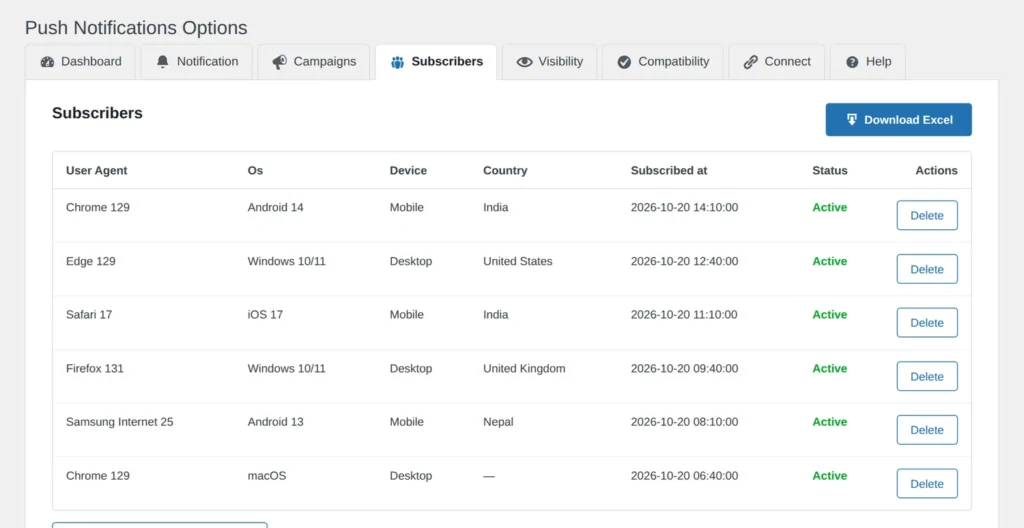
The table lists your 20 newest subscribers. To keep the page fast, even on very large lists, it does not page through everyone. Your total number is on the Dashboard, and the Excel download contains everybody. For privacy, the table shows technical details, not names or email addresses, because push subscribers are anonymous browsers.
- User Agent: the browser and its version, for example Chrome 129. Hover over it to see the full technical text.
- Os: the operating system, such as Windows 10/11, Android 14, iOS 17 or macOS.
- Device: the type of device, such as Mobile or Desktop. A dash means it is unknown.
- Country: where the visitor is from. It is only filled in when country saving is turned on in the Dashboard. A dash means no country was saved.
- Subscribed at: the date and time they subscribed.
- Status: Active means they can receive notifications.
- Actions > Delete: removes that subscriber after you confirm. They will stop receiving notifications.
If nobody has subscribed yet, the table simply says No data found.

2. Download Excel
The Download Excel button at the top right, and the Download all subscribers (Excel) button under the table, give you a spreadsheet of every subscriber. If you turned on “Save page url on subscribe” in the Dashboard, the page each person subscribed from is included too. Use it for your own reports, or to see which countries and devices your audience uses.
3. Import subscribers
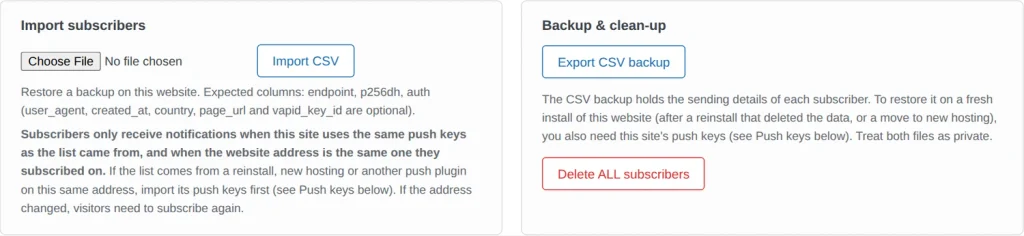
Use Import subscribers to restore a backup on this website. Choose a CSV file and click Import CSV. The file needs three columns: endpoint, p256dh and auth. These columns are optional: user_agent, created_at, country, page_url and vapid_key_id.
An important rule: imported subscribers only receive notifications when this site uses the same push keys as the list came from, and when the website address is the same one they subscribed on. If the list comes from a reinstall, new hosting, or another push plugin on this same address, import its push keys first (see Push keys below). If your website address changed, visitors need to subscribe again.
4. Backup and clean-up
- Export CSV backup: downloads the sending details of each subscriber. To restore it on a fresh install you also need this site’s push keys, so download those too. Treat both files as private.
- Delete ALL subscribers: permanently removes everyone on this site. The plugin asks you to confirm because it cannot be undone. Make a backup first if there is any chance you will need the list again.
5. Push keys
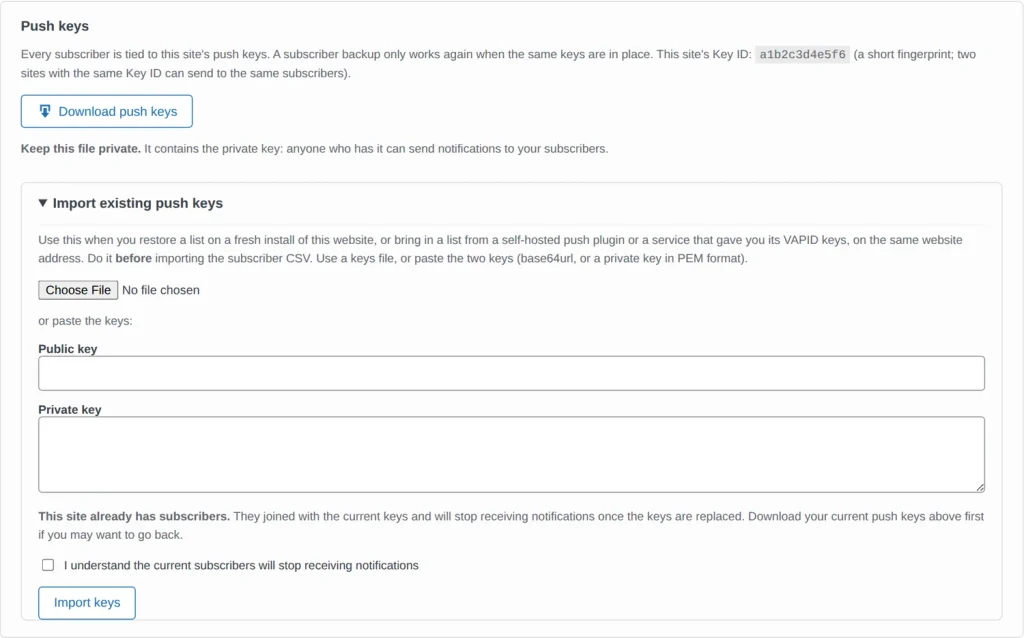
Every subscriber is tied to a pair of push keys that belong to your site. Think of them as the lock and key between your site and your subscribers’ browsers. If the keys change, the old subscribers can no longer be reached.
- Key ID: a short fingerprint of your keys. Two sites with the same Key ID can send to the same subscribers.
- Download push keys: saves your keys to a file. Keep this file private. It contains the private key, so anyone who has it can send notifications to your subscribers.
- Import existing push keys: click to open the form. Use it when you restore a list on a fresh install of the same website, or bring in a list from another self-hosted push plugin or service that gave you its VAPID keys, on the same website address. Choose a keys file, or paste the public key and the private key (in base64url, or a private key in PEM format). Do this before importing the subscriber CSV.
If your site already has subscribers, the form warns you that they joined with the current keys and will stop receiving notifications once the keys are replaced. You must tick I understand the current subscribers will stop receiving notifications before you can continue, and the button asks for one more confirmation. Download your current keys first if you might want to go back.
6. How to restore your list on a new site
- Before anything goes wrong, click Export CSV backup and Download push keys, and store both files somewhere private.
- On the new or reinstalled site (same website address), install WP Push Notify.
- Open the Subscribers tab and use Import existing push keys with your keys file.
- Then use Import CSV with your backup file.
- Send a test notification from the Notification tab to confirm everything works.
Frequently asked questions
Why does the tab only show 20 subscribers?
It lists the 20 newest to stay fast on large lists. Use Download Excel to see everyone.
Can I see my subscribers’ names or emails?
No. Push subscribers are anonymous browsers, so the plugin stores technical details such as browser, device and, if you allow it, country, not personal contact details.
I imported a CSV but nobody receives notifications. Why?
Usually the push keys or the website address do not match the original. Import the original push keys first, and check the address is exactly the same one people subscribed on.
What happens when I delete a subscriber?
They are removed from your list and will stop receiving notifications. They can subscribe again later.
What’s next
Next, decide where the popup should and should not appear. Continue with the guide to the Visibility tab.
1 comment