

The WP Push Notify Campaigns tab is your sending history and your control room for scheduled messages. Every notification you send from the Notification tab, or that goes out automatically when you publish, is listed here with its status, how many people received it and how many tapped it. You can also edit or cancel scheduled campaigns, send them early, reuse an old one, or delete the ones you no longer need.
Open WP Push Notify in your WordPress menu and click Campaigns. This guide explains every column and button.
1. What you see on the Campaigns tab
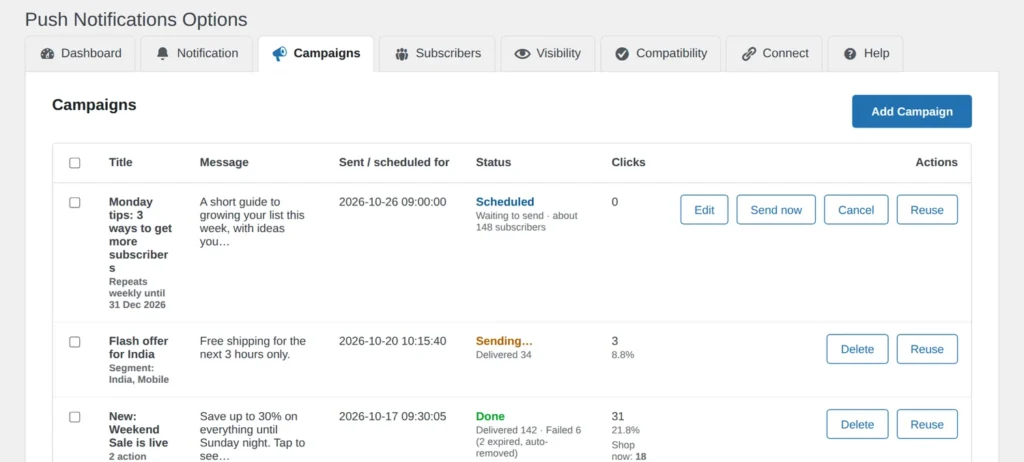
At the top is the Add Campaign button. It takes you straight to the Notification tab to write a new message. Below it is a table with the newest campaign first. The table shows 20 campaigns per page, and when you have more, Prev and Next links appear underneath.
2. The columns, one by one
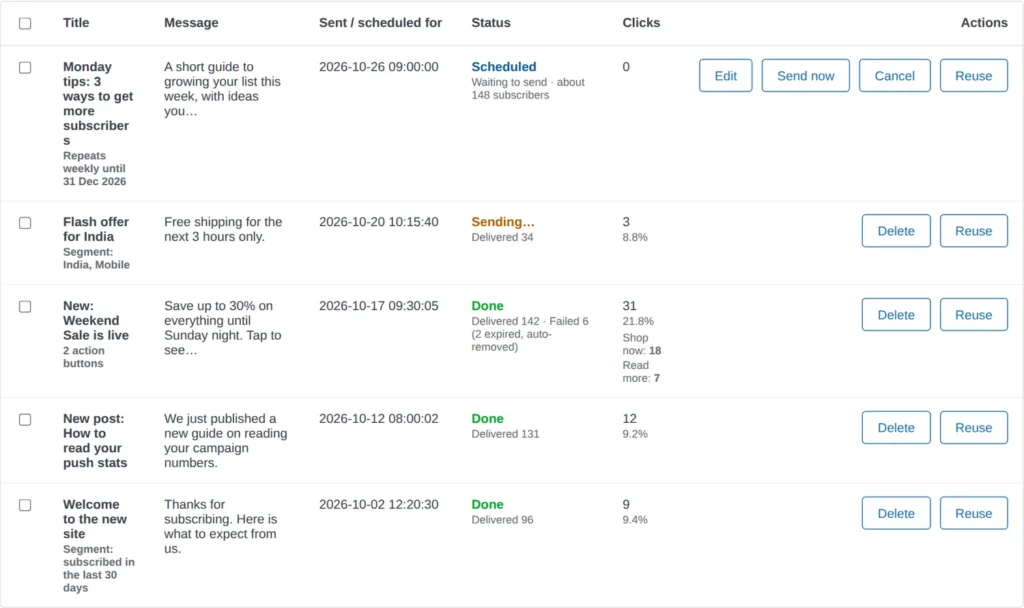
- Checkbox: used to select campaigns for bulk delete (see below).
- Title: the notification title. Small grey lines underneath add useful details: Segment when it was sent to a filtered audience (for example “India, Mobile”), Repeats when it is a repeating campaign (with the end date if you set one), and the number of action buttons it has.
- Message: the first words of the message. Hover over it with your mouse to read the full text.
- Sent / scheduled for: the date and time a campaign was sent, or the date and time it is waiting to go out.
- Status: Scheduled, Sending… or Done, with delivery numbers underneath.
- Clicks: how many people tapped the notification, and the percentage.
- Actions: the buttons available for that campaign.
3. Reading the status and delivery numbers
Scheduled
The campaign is waiting for its time. The line underneath says “Waiting to send” and shows about how many subscribers it will reach. Scheduled campaigns send automatically at their time, using your site’s timezone, which is also shown in a note under the table.

Sending…
A big send is processed in the background in batches. While it is still going, the status shows Sending… with the number delivered so far. It finishes by itself, so you can leave the page. Refresh it to see updated counts.
Done
The send has finished. The line underneath shows Delivered, the number of subscribers the notification was successfully handed to. If some did not go through you will also see Failed. Part of the failures may be listed as expired, auto-removed: those are subscriptions the browser reports as no longer valid, for example because the person cleared their browser data. The plugin removes them for you, so your list stays clean.
4. Clicks and button presses

The Clicks column shows the total number of taps and, underneath, the percentage compared with the number delivered. For example, 31 clicks on 142 delivered is 21.8%. If the campaign had action buttons, each one is listed with its own count, such as “Shop now: 18”. Button presses are also included in the total above them, so you do not need to add them up. This helps you see which wording or offer worked best, and what to repeat next time.
5. Actions: Edit, Send now, Cancel, Reuse, Delete
The buttons on the right depend on the campaign.
For a scheduled campaign
- Edit: opens the Notification form filled in with that campaign, including its date and time, so you can change anything before it goes out.
- Send now: asks you to confirm, then sends it immediately instead of waiting.
- Cancel: cancels and deletes the scheduled campaign so it is not sent. For a repeating campaign, cancelling the waiting one stops the series.
For every campaign
- Reuse: opens the Notification form pre-filled with the campaign’s design, text, images, buttons and audience. Change what you need and send it again. This is the quickest way to send a similar message.
- Delete (on sent campaigns): removes the campaign from the list after you confirm. It cannot be undone, and it only removes the record, not the notification that people already received.
6. Deleting several campaigns at once

Tick the boxes in the first column, or the box in the table header to select all campaigns on the page. The Delete selected button below the table switches on once at least one is ticked. The plugin asks you to confirm and warns that any campaigns that are still sending will stop.
7. When there are no campaigns yet
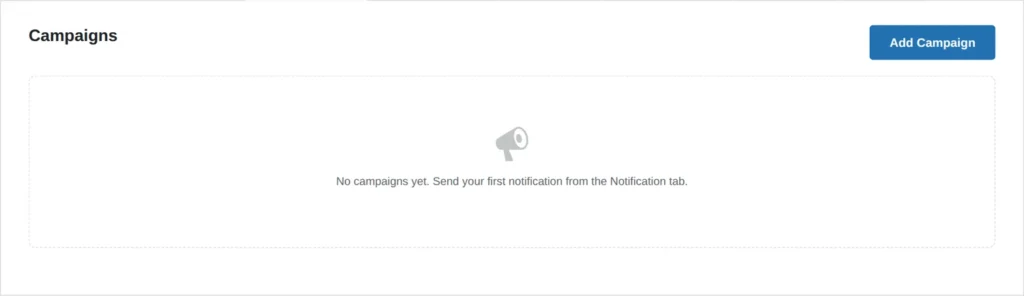
On a new site the tab shows a friendly message: “No campaigns yet. Send your first notification from the Notification tab.” Use Add Campaign to write one.
Frequently asked questions
Why is a scheduled campaign late?
WordPress only runs scheduled jobs when your site gets a visit or when a real server cron job is set up, so on a quiet site it can go out a few minutes late. You can always use Send now.
Why do Delivered and my subscriber count differ?
Campaigns sent to a segment reach only part of your list, and on the Free plan each notification reaches up to 200 subscribers. Failed and expired subscriptions are also not counted as delivered.
Can I stop a repeating campaign?
Yes. Click Cancel on the waiting campaign. A repeating campaign creates its next run each time it sends, so cancelling the waiting one ends the series.
Will deleting a campaign unsend it?
No. Delete only removes the entry from your list. Notifications already delivered stay on people’s devices.
What’s next
Campaigns show how your messages perform. To see who is on the other end, continue with the guide to the Subscribers tab.

1 comment