
WP Push Notify is a self-hosted push notification plugin for WordPress. It lets visitors say yes to notifications in their browser, and then sends them a message straight from your own server whenever you publish something new or want to share an offer. Because the plugin sends from your own site, nothing goes through a third party except the license check.
The plugin has eight tabs, and each one does a different job. This is the complete guide that ties them together. It explains what every tab is for, the best order to set things up, and where to read the full step-by-step guide for each one. Whether you are installing it for the first time or you want to understand an option you have never touched, start here.
The eight tabs at a glance

Open WP Push Notify in your WordPress menu and you will see the tab bar above. Here is what each tab is for, with a link to its full guide.
| Tab | What it is for | Full guide |
|---|---|---|
| Dashboard | Subscriber stats, default settings, automatic sending, tracking and the subscribe popup design | Dashboard guide |
| Notification | Write and send a message by hand, with a live preview, audience and scheduling | Notification tab guide |
| Campaigns | Your sending history, results, scheduled messages and clean-up | Campaigns tab guide |
| Subscribers | The people on your list, Excel download, import, backup and push keys | Subscribers tab guide |
| Visibility | Where the popup and bell may and may not appear | Visibility tab guide |
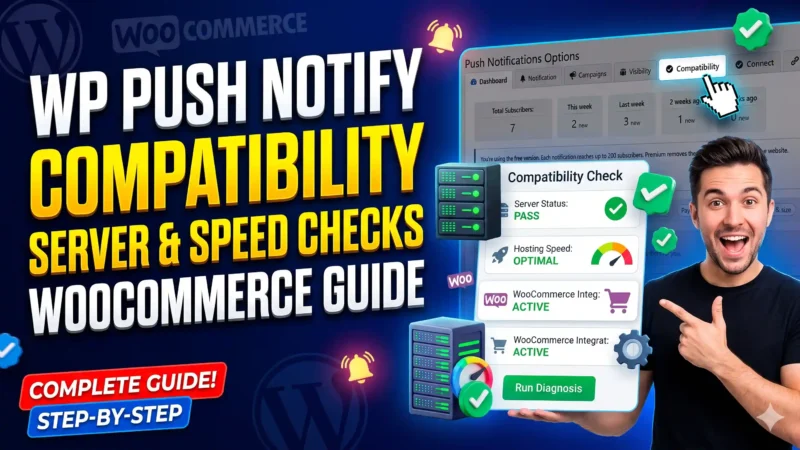
| Compatibility | Server health checks, hosting speed and WooCommerce notifications | Compatibility tab guide |
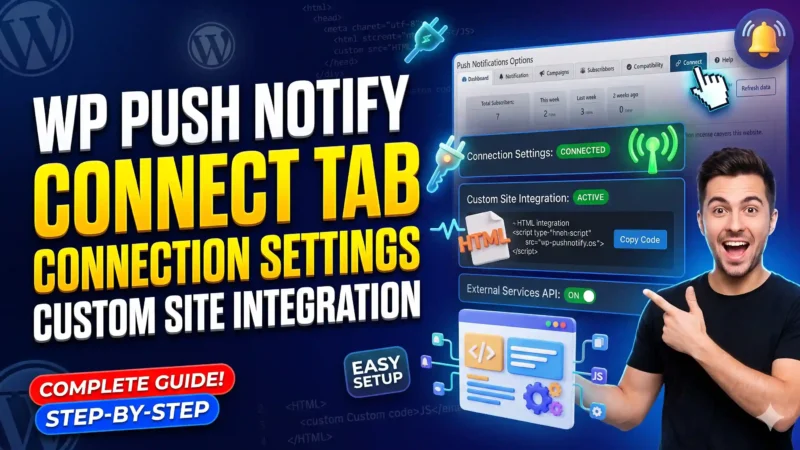
| Connect | Connection status, service worker, site name and custom site integration | Connect tab guide |
| Help | Quick answers and troubleshooting inside the plugin | See the section on Help below |
The best setup order
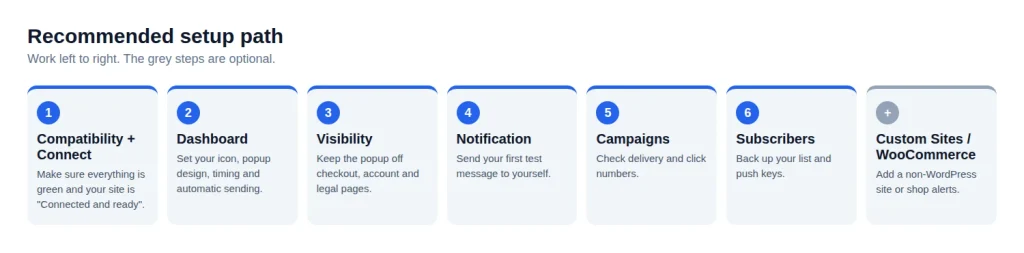
You can open the tabs in any order, but this path avoids most problems.
- Check that your site is ready. Open the Compatibility tab and look for green ticks, then open the Connect tab and make sure it says “Connected and ready”. Web push needs HTTPS and push keys, and these two tabs tell you straight away if something is missing.
- Set your defaults and design the popup. On the Dashboard, choose your notification icon, switch on sending when you publish, pick a popup design and decide when it should appear.
- Keep the popup out of the way. In Visibility, hide it on checkout pages, account pages and legal pages if you have them.
- Send a test. Subscribe on your own site, then write a short message on the Notification tab and send it to yourself.
- Check the result. Open Campaigns to see delivery and click numbers for the message you just sent.
- Protect your list. In Subscribers, download your push keys and a backup, and keep both somewhere private.
After that you can add extras: WooCommerce shop alerts, or push for a site that is not WordPress.
Dashboard: your defaults and your popup
The Dashboard is the first tab you see and the one with the most settings. At the top are your subscriber numbers: the total and the new subscribers in each of the last four weeks. Below that, it is split into sections. Sending controls your default icon, automatic notifications when you publish, an optional action button, who receives them and a limit on how many go out. Tracking and data controls UTM tags for Google Analytics and what is saved about each subscriber. Then six popup sections let you choose how the popup appears, pick from 14 designs, set colours, position, timing and every word on the popup.
Read the full guide: WP Push Notify Dashboard Guide: How to Use Every Option.
Notification: write and send a message
Use this tab when you want to send something yourself, such as an offer, an announcement or a reminder. Pick one of four designs (text only, with an icon, with a banner image, or both), write the title and message, and watch the live phone preview update as you type. You can add up to three action buttons, send to everyone or only a segment such as one country or device, and either send now or schedule it, including a daily, weekly or monthly repeat.
Read the full guide: WP Push Notify Notification Tab Guide: How to Write and Send Push Notifications.
Campaigns: results and scheduled messages
Every notification you send, by hand or automatically, appears here. You can see whether it is scheduled, sending or done, how many people it was delivered to, how many tapped it and which action button they pressed. This is also where you edit or cancel a scheduled message, send it early, reuse an old message as a starting point, or delete old campaigns.
Read the full guide: WP Push Notify Campaigns Tab Guide: Track, Schedule and Manage Push Notifications.
Subscribers: your list and your keys
This tab shows your 20 newest subscribers, with browser, device and country, and lets you download everyone as an Excel file. It also holds the safety tools: import a CSV, export a backup, delete the whole list, and manage your site’s push keys. Those keys are what tie your subscribers to your site, so keeping a copy is the most important thing you can do here.
Read the full guide: WP Push Notify Subscribers Tab Guide: Manage, Export, Import and Back Up Your List.
Visibility: where the popup should not show
A popup that appears in the wrong place is annoying. Visibility lets you hide the automatic popup and the floating bell on certain pages (with simple wildcards such as /shop/*), on the home page, for logged-in users, and on phones or computers. The subscribe button shortcode is never hidden.
Read the full guide: WP Push Notify Visibility Tab Guide: Control Where the Popup Appears.
Compatibility: is your server ready?
A health check for your hosting. It checks HTTPS, push keys, PHP, cURL, WP-Cron, permalinks, Excel support and caching plugins, and lists which browsers and devices can receive notifications. It also lets you tell the plugin what kind of hosting you have, so large sends are paced safely, and it holds the automatic WooCommerce notifications for new orders, back-in-stock, price drops and abandoned carts.
Read the full guide: WP Push Notify Compatibility Tab Guide: Server Checks, Hosting Speed and WooCommerce.
Connect: the status of your connection
Connect tells you in one glance whether your site is ready to send. It also has settings for the service worker path, the name shown in notification titles and the allowed external domains. For developers, it includes the values and code needed to add push to a site that is not built with WordPress.
Read the full guide: WP Push Notify Connect Tab Guide: Connection Settings and Custom Site Integration.
Help: quick answers inside the plugin
The Help tab collects short answers and fixes so you do not have to leave your dashboard. If you are stuck on something specific, the troubleshooting page and the documentation on the main website are good next stops. If your popup never appears or subscribers are not being saved, check the Compatibility, Connect and Visibility tabs first, because those three cause most first-day problems.
Using WP Push Notify on a site that is not WordPress
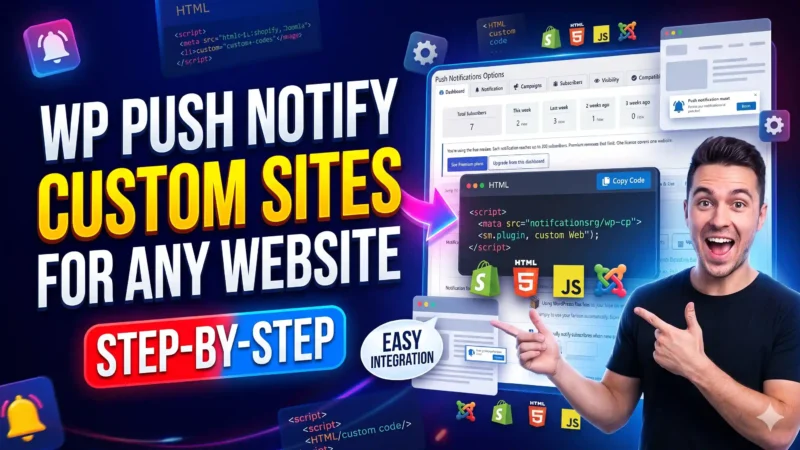
If your main website is hand-coded or built with another system, you can still use the plugin. A small WordPress site with WP Push Notify installed acts as the “hub” that keeps the subscriber list and does the sending, and your other website needs only one small file and one line of code. Everything is explained step by step in the WP Push Notify Custom Sites guide, including the API key and optional automatic notifications. The Connect tab is where you add the other site to the allowed domains.
Key terms in plain words
- Subscriber: a visitor who clicked Allow. Subscribers are anonymous browsers, not email addresses. See Subscribers.
- Campaign: one notification sent to your audience, with its own results. See Campaigns.
- Segment: a group of subscribers chosen by filters such as country, device or browser. See the audience section of the Notification guide.
- Push keys (VAPID keys): the pair of keys that links your site to your subscribers’ browsers. If you lose them, old subscribers cannot be reached. See Subscribers and Connect.
- Service worker: a tiny file that lets the browser show notifications even when your site is closed. See Connect and Custom Sites.
- UTM tracking: small tags added to notification links so Google Analytics can show how many visits came from notifications. See the tracking section of the Dashboard guide.
- WP-Cron: WordPress’s built-in scheduler, used for scheduled and large background sends. See Compatibility.
- Hub: the WordPress site that stores subscribers and sends for a non-WordPress website. See Custom Sites.
Frequently asked questions
Where do I start?
Follow the setup order above: Compatibility and Connect first, then the Dashboard, Visibility and your first test on the Notification tab.
Why does nobody see my popup?
Check the Visibility tab first, then the timing section of the Dashboard. Remember that visitors who clicked Later will not see it again until your settings allow it. If it still does not show, look at your caching plugin on the Compatibility tab.
How do I send a notification automatically when I publish a post?
Turn on the publish option in the Sending section of the Dashboard. Use the Notification tab for messages you write by hand.
How do I see whether people clicked?
Open the Campaigns tab. Each campaign shows delivered, failed and click numbers, plus a count for each action button.
How do I avoid losing my subscribers?
Download your push keys and an export backup from the Subscribers tab, and keep both private.
Does it work on iPhone?
Only after a visitor adds your site to the Home Screen, because that is an Apple rule. The Compatibility guide explains which browsers and devices are supported.
Is there a free version?
Yes. The free version reaches up to 200 subscribers per notification and Premium removes that limit. See the pricing section for current plans.
Where to go next
If you are new, start with the Compatibility and Connect guides, then work through the Dashboard guide. You can also visit the Start here page, download the plugin, or contact us if you have a question.